X
wikiHow is a “wiki,” similar to Wikipedia, which means that many of our articles are co-written by multiple authors. To create this article, volunteer authors worked to edit and improve it over time.
This article has been viewed 21,150 times.
Learn more...
This is for those of you who want enlarge the Command Prompt box on a Windows 7 PC by default. If you'd like to learn this process, this article starting with Step 1 below will show you how.
Steps
-
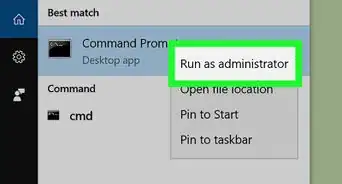
1Run the Command Prompt box. Start it from your Start menu. You can find it on your All programs list underneath Accessories and most of the time underneath that in the System Tools list, or you can go right to it from your Run command (type in "cmd.exe" into your Run window text box).
-
2Open the Command Prompt's Properties list. Right click on the title bar of the Command Prompt and Select Properties.
-
3Switch the window size width and height from their default values to bigger values. Look under the Layout tab for a Window Size: Width and Window Size: Height. Change the width from 80 to a higher value such as 170. This dimensions will be based on your screen's resolution size, and sometimes just dividing the dimensions by 8 will be good enough. Don't type a value into this box that's bigger than 170, as the computer will turn them back to 170.
-
4Preview your changes so far. Close the Command Prompt window and reopen it. You should now be able to maximize the cmd prompt window to full screen by double clicking on the menu bar or resize the window using you mouse.


-Files-in-Command-Prompt-Step-6.webp)