X
This article was co-authored by wikiHow Staff. Our trained team of editors and researchers validate articles for accuracy and comprehensiveness. wikiHow's Content Management Team carefully monitors the work from our editorial staff to ensure that each article is backed by trusted research and meets our high quality standards.
This article has been viewed 131,193 times.
Learn more...
The command prompt is great way to navigate through different files and directories on your computer and is relatively straightforward. If you need to navigate back from a directory, the process is simple. This wikiHow shows you how to navigate back in the Command prompt.
Steps
-
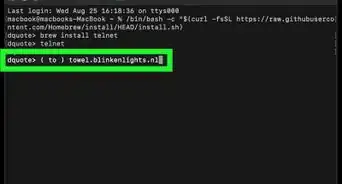
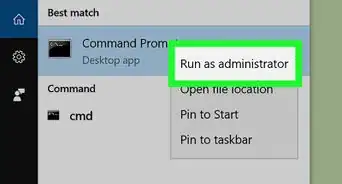
1Open the Command prompt. You can usually find it by typing “command” into the search bar and selecting it in the search results.
-
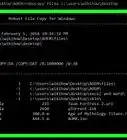
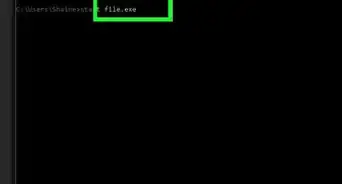
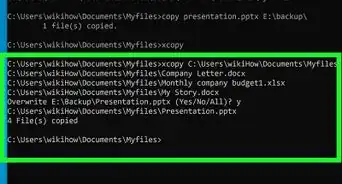
2Type in the name of the file you want to see. While in the command prompt menu, you can view any files on your computer in a text-only format by typing in the location (usually a disk) and the file name (including any extensions).Advertisement
-
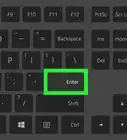
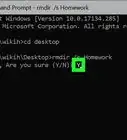
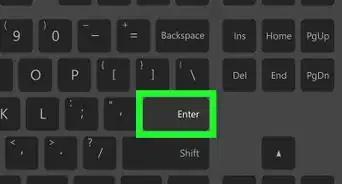
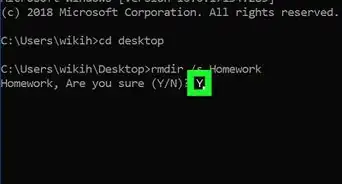
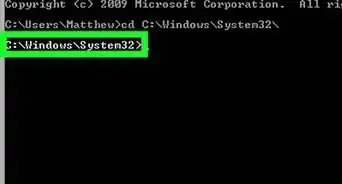
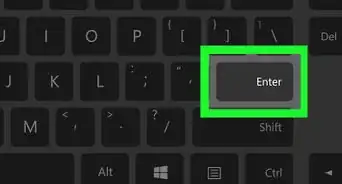
3Type. cd.. into the prompt. After you press Enter, this command tells the program to navigate back to the previous folder.
- It’s important you type the two dots, since you won’t navigate anywhere if you simply type “cd” into the prompt.
-
4Type cd\ into the prompt to go back to the directory. If you need to navigate from a location back to the main command prompt, this command takes you back immediately.Advertisement


-Files-in-Command-Prompt-Step-6.webp)
About This Article

wikiHow Staff
wikiHow Staff Writer
This article was co-authored by wikiHow Staff. Our trained team of editors and researchers validate articles for accuracy and comprehensiveness. wikiHow's Content Management Team carefully monitors the work from our editorial staff to ensure that each article is backed by trusted research and meets our high quality standards. This article has been viewed 131,193 times.
How helpful is this?
Co-authors: 3
Updated: September 10, 2019
Views: 131,193
Categories: Command Prompt
Article SummaryX
1. Open the Command prompt.
2. Type cd.. Into the prompt.
Did this summary help you?
Advertisement