X
wikiHow is a “wiki,” similar to Wikipedia, which means that many of our articles are co-written by multiple authors. To create this article, 12 people, some anonymous, worked to edit and improve it over time.
This article has been viewed 66,171 times.
Learn more...
OpenOffice has its own suite of software that matches the versatility and strength of MS Office and, being open source, it is free. Read this article to learn how to draw basic shapes using OpenOffice Draw. You can draw both 2D and 3D images in Draw.
- This tutorial was written about OpenOffice version 2, but most, if not all, should apply to version 3.
Steps
-
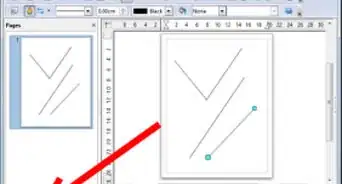
1Become familiar with the Drawing tool bar. The Drawing toolbar is normally located at the bottom of the window. If you do not see it, activate it from the View > Toolbars menu. As in all OpenOffice components, you can place the toolbar on the Draw window wherever you wish.
-
2Learn about the custom shapes in Draw, below are the basic shapes.
- Lines Lines
- Arrows Arrows
- Rectangles and Squares Rectangles and squares
- Ellipses and Circles Ellipses and circles
- Curves and Polygons Curves and polygons
- Gluepoints and Connectors Gluepoints and Connectors
- Geometric Shapes Geometric Shapes and Arrows
- Note: If you draw a basic shape or select one for editing, the Info field in the status bar changes to reflect the action taken: Line created, Text frame xxyy selected, and so on.


Method 1
Method 1 of 3:Flowcharts, Stars and Banners
Method 1
-
1Get the tools for drawing flowcharts by clicking on the icon.
-
2Use callouts by clicking on this icon . It open the Callouts toolbar.
- Note: These new callouts replace the old ones in Version 1. If you still need the old ones, you can add them manually to this or another toolbar.
-
3Access the Stars and banners by clicking on this icon.
- You can add text to all these shapes.


Method 2
Method 2 of 3:Add Text to Objects
Method 2
-
1
-
2
-
3After activating the Text command mode, click at the location where you want to position the text. A small text frame appears. It contains only the cursor. You can move the frame if desired. The Text Formatting toolbar appears and you can choose the font type, font size and other text properties and begin to type in your text.
- The text frame grows with the text. You can insert a line break with the Shift+Enter key combination.
- The Enter key begins a new paragraph. Neither line breaks nor new paragraphs terminate the text frame.
-
4Observe the information field in the status bar: it shows that you are editing text and also provides details about the current cursor location - paragraph, line, and column numbers.
- Text properties can also be changed during text input. Any changes will be reflected from the cursor position onwards.
-
5After choosing the Text icon, you can also draw a frame with the mouse to contain future text. Line breaks are inserted automatically at the right edge of the frame when the text fills the frame width. You can however—just like when editing other text—insert your own line breaks, begin new paragraphs or change any of the text properties.


Method 3
Method 3 of 3:Use text elements in Draw objects
Method 3
-
1
-
2In the middle of the Draw object you will see a black bar as the text cursor; start typing to input text. The status bar shows at lower left “Text Edit” and the position of the cursor within the text.
- Text can contain paragraphs and these can be in the form of bulleted or numbered lists. For a new line without beginning a new paragraph, use (as in text documents) the key combination Shift+Enter. To end the text input, click next to the object or press the Esc key.


References
- This article was created from this wiki