This article was written by Travis Boylls. Travis Boylls is a Technology Writer and Editor for wikiHow. Travis has experience writing technology-related articles, providing software customer service, and in graphic design. He specializes in Windows, macOS, Android, iOS, and Linux platforms. He studied graphic design at Pikes Peak Community College.
This article has been viewed 3,852 times.
The Command Prompt (or CMD) is a Windows application that allows you to execute commands, run programs, scripts, and automate tasks. In order to execute a program, script, or batch file, you first need to open the folder that contains that file. This wikiHow article teaches you how to open a folder in the Command Prompt.
Steps
Method 1
Method 1 of 3:Using File Explorer
-
1
-
2Navigate to the folder you want to open in Command Prompt. Use File Explorer to click the folder you want to open. Then click the folder to open it.
-
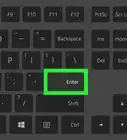
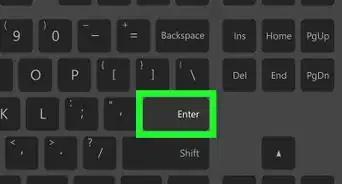
3Type cmd in the address bar and press ↵ Enter. This opens a new Command Prompt window inside the folder you currently have open in File Explorer.[1]


Method 2
Method 2 of 3:Using the File Explorer Context Menu
-
1
-
2Navigate to the folder you want to open in Command Prompt. Using the panel on the left side of File Explorer, click the folder you want to open. Then click the folder to open it.
-
3Hold ⇧ Shift and right-click any blank space in the folder. This displays a context menu next to your mouse cursor.
-
4Click Open command window here. This opens the Command Prompt inside the folder.
- On newer versions of Windows, this option has changed to Open PowerShell window here. PowerShell is a more advanced version of Command Prompt. Most commands that work in Command Prompt will also work in PowerShell.[2]


Method 3
Method 3 of 3:Using Command Prompt Commands
-
1
-
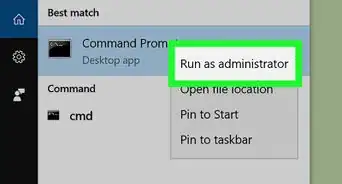
2Type CMD. This displays the Command Prompt in the Windows Start menu.
-
3
-
4Type the drive the folder is in and press ↵ Enter. If the folder you want to open is on a different drive other than the drive your Windows operating system is installed on, you need to switch to that drive in Command Prompt. To do so, type the letter of the drive followed by a colon {i.g. "D:") and then press Enter.
- You only need to do this if the folder is not located on the drive that Windows is installed on (which is usually the "C:" drive.)
-
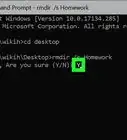
5Type cd followed by a space. The "cd" command is used to change directories in the Windows command prompt. Type "cd" followed by a space, but do not press Enter just yet.
-
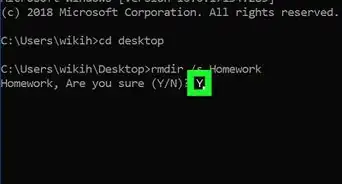
6Type the address of the folder after the space and press ↵ Enter. You'll need to include every folder and sub-folder the folder is located in. Place a backslash ("\") in front of each folder name. For example; "cd \Users\username\Documents."
- If you are not sure what the path of the folder is, you can navigate to the folder in File Explorer. Right-click the address bar at the top and click "Copy address as text. You can then press Ctrl + V' to paste the path of the folder directly into Command Prompt right after the "cd" command.


-Files-in-Command-Prompt-Step-6.webp)
References
About This Article

1. Click the Windows Start menu and type "cmd".
2. Click the Command Prompt icon to open it.
3. Type "cd" followed by a space.
4. Type the address of the folder after the space (i.e. "/Users/username/Documents.")
5. Press Enter.