This article was written by Darlene Antonelli, MA. Darlene Antonelli is a Technology Writer and Editor for wikiHow. Darlene has experience teaching college courses, writing technology-related articles, and working hands-on in the technology field. She earned an MA in Writing from Rowan University in 2012 and wrote her thesis on online communities and the personalities curated in such communities.
This article has been viewed 39,178 times.
Do you want to chat with your friends over a LAN? This wikiHow will teach you how to chat over LAN using Command Prompt. To do this, the computers need to be connected to the same network.
Steps
-
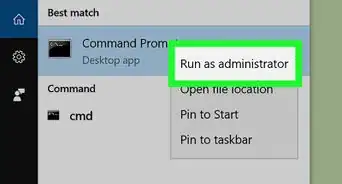
1Launch Command Prompt. You can find it by pressing the Windows key and typing "cmd." A search window will appear with the Command Prompt app as the first search result. Click that, and Command Prompt will open.
-
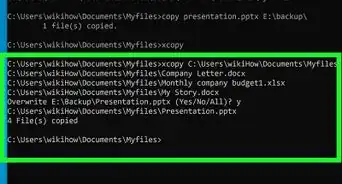
2Type the command to send a message.
- msg /SERVER:COMPUTERNAME * /TIME:60 "Hello! This message will close in 60 seconds"
- Replace "COMPUTERNAME" with the name of the PC you're trying to send the chat to (check your local network for the name of this computer if you don't know it).
- Replace the text that appears between the quotation marks with the message you want to send.
- Replace the value for "Time" to change how long the message will appear on their screen (60 means 60 seconds).
-
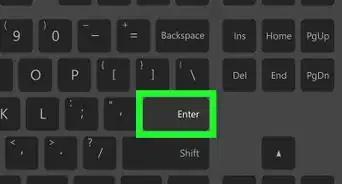
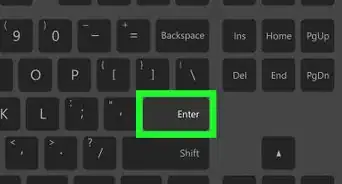
3Press ↵ Enter. The message should send to the other computer for the time specified.
- If that command isn't working and you're running a version older than Windows 10, try entering net send ip address "Is this message working?". Replace "ip address" with the local IP address of the computer you're trying to send the message to.[1]


Community Q&A
-
QuestionHow do I do this in windows 10?
 wikiHow Staff EditorThis answer was written by one of our trained team of researchers who validated it for accuracy and comprehensiveness.
Staff AnswerwikiHow Staff EditorStaff AnswerThe above method will work for Windows 10. Earlier versions of Windows has different coding. -
QuestionWhat does the message appear as on the other computer?wikiHow Staff EditorThis answer was written by one of our trained team of researchers who validated it for accuracy and comprehensiveness.
Staff AnswerwikiHow Staff EditorStaff AnswerIt'll appear as a pop-up terminal window on the other computer that's on the same network. -
QuestionSo, do I use [Hi!] or just say Hi!?
 Community AnswerYou type it without the [ ]. They commonly just represent a placeholder.
 -
QuestionAfter the 4th step, I get the message "Host not found"?
 EmarosiCommunity AnswerCheck the username. Confirm if the machine and or username you want to reach is on the domain.
 -
QuestionI can't do it; there is syntax just like the picture?EmarosiCommunity AnswerFollow the syntax. Replace the parameters with the ones you see as you go along.
-
QuestionWhy does command net send not work?EmarosiCommunity AnswerNet send username message. This is the syntax. Insert the username as seen on the AD.

-Files-in-Command-Prompt-Step-6.webp)
About This Article

1. Open the Command Prompt.
2. Type the following code: "msg /SERVER:DestinationPC * /TIME:60 “This is the message to be sent to a PC named DestinationPC and closes in 60 seconds."".
3. Press Enter.