X
wikiHow is a “wiki,” similar to Wikipedia, which means that many of our articles are co-written by multiple authors. To create this article, 27 people, some anonymous, worked to edit and improve it over time.
The wikiHow Tech Team also followed the article's instructions and verified that they work.
This article has been viewed 256,200 times.
Learn more...
Have you ever wanted to automate operations in your operating system? Have you ever wanted to write a program that could create a file and copy that file to a specific directory? Have you ever thought about doing these tasks using the BASH Shell in Ubuntu? If so, then this is the article for you!
Steps
-
1Launch the Terminal. You can launch the terminal by opening the dash and searching for it by name. You could also open it using the keyboard shortcut Ctrl+Alt+T.
-
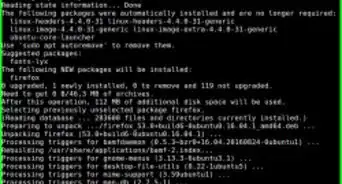
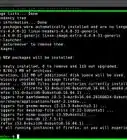
2Launch the vi/vim editor. Vim is a free and popular text editor that uses the command line interface. If you do not currently have Vim installed, you can do so easily by typing this command into the terminal: sudo apt-get install vim.
-
3Type vim ListDir.sh and hit ↵ Enter. Once inside the Editor, type "I" or "i." This will allow you to insert/start typing your shell script.
-
4Type the following code: #!/bin/bash. This is known as a Shebang line.
-
5Type the code as shown in the figure. The first line (echo "Welcome") prints the line "Welcome" into the terminal. echo is used to return the given text and a new line. The second line (ls) lists the contents of the directory. ls is short for list. The final line (another echo statement) returns the text This completes the list of directories.
-
6Exit vim. Type the following key combinations, Esc + : + wq to escape the editor. This will write the changes to the file and bring you back to the terminal. Save the file as ListDir.sh
-
7Change the access permissions. Enter the following command: chmod +x ListDir.sh. chmod is a command used in Unix like operating systems to change the access permissions to a file.
-
8Run the scrip. Type ./ListDir.sh to run this script. You should get the list of directories and the message as shown in the above image.


Community Q&A
-
QuestionAfter typing in "sudo apt install", "(sudo) password for jenneta" appears. What do I do?
 Living ConcreteTop AnswererIt is prompting you for the password to your account. Type in your password and then press Enter.
 -
QuestionHow do I learn shell scripting?
 Aryaa VashisthCommunity AnswerInstall Python shell scripting and watch tutorials of how to script on Python.
 -
QuestionHow? I would like to stop the "file already exists" function at the OS level and instead rename the file on the disk before writing whatever to the original file name specified.
 Nithik RameshCommunity AnswerYou may have a file of the exact same name and that is why it shows up. Try using another name for your shell script "vim " Or if you want to rename an existing file, do "mv " without the quotes and the angular brackets.
Warnings
- For starters, place your shell scripts in your home directory as you begin your shell script journey. Once comfortable, place them in your required directory system.Thanks!
- Ensure that the files you create, do not reside in any system directories of the / = root file system.Thanks!