X
This article was written by Nicole Levine, MFA. Nicole Levine is a Technology Writer and Editor for wikiHow. She has more than 20 years of experience creating technical documentation and leading support teams at major web hosting and software companies. Nicole also holds an MFA in Creative Writing from Portland State University and teaches composition, fiction-writing, and zine-making at various institutions.
The wikiHow Tech Team also followed the article's instructions and verified that they work.
This article has been viewed 1,323 times.
This wikiHow teaches you how to view items you’ve added to a Google Tasks list without leaving Gmail.com.
Steps
-
1Open Gmail in a web browser. If you don’t see your inbox, follow the on-screen instructions to sign in now.
-
2Click the Tasks button. It’s the round blue, white, and orange icon in the bar that runs along the right side of your inbox. Your tasks will appear.
-
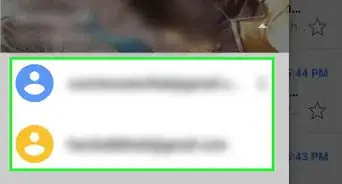
3Select a task list to view. If you have more than one task list, click the drop-down menu at the top of the right column (under the ″TASKS″ header) to show all lists, then click the one you want to view.
- Click the radio button next to a task to mark it completed.
- To edit a task, click the pencil next to its name, make your changes, and then click the arrow at the top-left corner of the column to save.
- To delete the task, click the pencil next to its name, then click the trash can at the top of the column.


About This Article

Nicole Levine, MFA
Tech Specialist
This article was written by Nicole Levine, MFA. Nicole Levine is a Technology Writer and Editor for wikiHow. She has more than 20 years of experience creating technical documentation and leading support teams at major web hosting and software companies. Nicole also holds an MFA in Creative Writing from Portland State University and teaches composition, fiction-writing, and zine-making at various institutions. This article has been viewed 1,323 times.
How helpful is this?
Co-authors: 2
Updated: October 14, 2018
Views: 1,323
Categories: Gmail
Article SummaryX
1. Open Gmail.
2. Click the task icon.
3. Select a task list to view.
Did this summary help you?