This article was written by Jack Lloyd. Jack Lloyd is a Technology Writer and Editor for wikiHow. He has over two years of experience writing and editing technology-related articles. He is technology enthusiast and an English teacher.
The wikiHow Tech Team also followed the article's instructions and verified that they work.
This article has been viewed 825,862 times.
This wikiHow teaches you how to send an email by using Gmail. You can use the Gmail website to send email from a computer, or you can use the Gmail mobile app to send email from a smartphone or tablet.
Steps
Method 1
Method 1 of 2:On Desktop
-
1Open Gmail. Go to https://www.gmail.com/ in your computer's web browser. This will open your Gmail inbox if you're logged in.
- If you aren't logged into your Gmail account, enter your email address and password when prompted.
-
2Click + Compose. It's in the upper-left side of your Gmail inbox. Doing so opens a "New Message" window in the lower-right corner of the page.
- If you're using the old version of Gmail, you'll click COMPOSE here instead.
Advertisement -
3Enter the other person's email address. Click the "To" or "Recipients" text box at the top of the New Message window, then type in the email address of the person to whom you want to send your email.
- To add multiple email addresses, type in the first email address, press Tab ↹, and repeat with the other email addresses.
- If you want to CC or BCC someone on the email, click either the Cc link or the Bcc link in the far-right side of the "To" text field, then type the email address you want to CC or BCC into the "Cc" or "Bcc" text field, respectively.
-
4Add a subject. Click the "Subject" text field, then type in whatever you want the subject of the email to be.
- Typically speaking, an email subject describes the gist of the email's message in a few words.
-
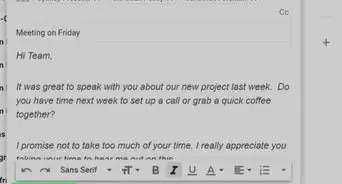
5Enter your email message. In the large text box below the "Subject" text box, type in whatever you want for your email message.
-
6Format your email's text if needed. If you want to apply formatting to your text (e.g., bolding, italics, or bullet points), highlight the text to which you want to apply the formatting, then click one of the formatting options at the bottom of the email window.
- For example, to bold a section of text, you would highlight the text and then click B at the bottom of the email.
-
7Attach a file if you like. To add a file from your computer, click the "Attachments" icon at the bottom of the window, then select the file(s) you want to upload and click Open (or Choose on a Mac).
- You can add photos in this way, or you can upload photos directly to the email's body by clicking the "Photos" icon at the bottom of the window, clicking Upload, clicking Choose photos to upload, and selecting photos as needed.
-
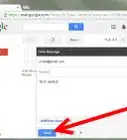
8Click Send. It's a blue button in the bottom-left corner of the email window. Doing so will send your email to the specified email address(es).Advertisement


Method 2
Method 2 of 2:On Mobile
-
1Open Gmail. Tap the Gmail app icon, which resembles a red "M" on a white background. This will open your Gmail inbox if you're logged in.
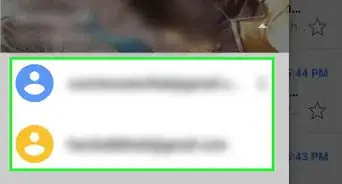
- If you aren't logged in, select your account and/or enter your email address and password to log in.
-
2
-
3
-
4Enter a subject. Tap the "Subject" text box, then enter the subject you want to use.
- Generally, a subject summarizes the email in a few words.
-
5Enter your email's message. Tap the "Compose email" text box, then type in whatever you want to use for your email.
-
6
-
7Tap the "Send" icon. It's a paper plane-shaped icon in the top-right corner of the screen. Your email will be sent.Advertisement


Community Q&A
-
QuestionWhat is the use of the word "regards"?
 Community AnswerIt means to consider someone in a certain way, usually in positive way. "Best regards," or "Regards," are a common way to end a letter before signing one's name.
 -
QuestionI want to send some files -- what do I write in the subject line?
 Community AnswerAdd your files first. At the bottom of the email you want to send, you see a paperclip icon. Click it, and select what files you want to send. In the subject line, you can write: Attachments for your consideration or something similar. If it is time critical, make that clear in the subject line too.
 -
QuestionHow do I know if my email is sent?Community AnswerYou can check for it in the "Sent Mail" folder. If you don't find it there, your email was not sent.
-
QuestionWill there be a problem sending emails to an address that is not a Gmail address?
 Community AnswerNo, there won't be any issue with using your Gmail account to send emails to people without Gmail accounts.
 -
QuestionI write in Word and need to send my document by Gmail to the newspaper. How can I do this?Community AnswerSave your Word document. Go into Gmail and press the little paperclip sign, that lets you add attachments. It brings up your saved documents -- just search for and find your saved Word document and click it. It should have either open/attach button in that window. Press it. Your document is attached to the email. Once it has finished uploading, the email is ready to send.
-
QuestionHow do I send an email through Gmail to someone in the UK?Community AnswerJust put in the email of the person and send it like you would to a US citizen.
-
QuestionHow do I send a photo with my email?Community AnswerWhen you press the "Compose" button to start a new message, you will see a paperclip icon. Click on that and then navigate to your photo file.
-
QuestionHow do I send an email from my inbox?Community AnswerIt's called 'forwarding'. Just select the options and select "forward". Then enter the recipient's email address and send.
-
QuestionMy Gmail page does not look like the one in the example. How do I fix this?Community AnswerIf you are using a phone or any portable device (iPad, tablet, etc.), click on the three horizontal dashes in the left hand corner and select "PC view."
-
QuestionWhy won't an email send when I click on send? It stays in the outbox.Community AnswerOne possibility for the email staying in the outbox is that the attached file size exceeds the limit of 25 MB.
Warnings
- Avoid giving out your email address to people or sites you don't trust.Thanks!

About This Article
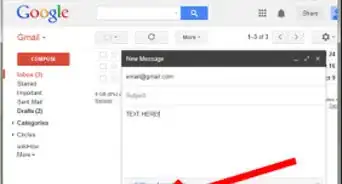
1. Sign in to Gmail.
2. Click Compose.
3. Enter the recipient's email address.
4. Type a subject line.
5. Type a message.
6. Click the paperclip to insert an attachment.
7. Use the bar along the button to format the text.
8. Click Send.