wikiHow is a “wiki,” similar to Wikipedia, which means that many of our articles are co-written by multiple authors. To create this article, 9 people, some anonymous, worked to edit and improve it over time.
The wikiHow Tech Team also followed the article's instructions and verified that they work.
This article has been viewed 146,392 times.
Learn more...
Over time, as you use your Gmail account for all of your social and economic sign-ups like Facebook, Tagged, Dropbox, and other websites, your Gmail inbox can become flooded by unwanted mails or spam messages. The following steps will explain how to stop such spam emails and stay organized to keep on top of unwanted messages. You can also clean up and enhance your Gmail experience by blocking ads.
Steps
Part 1
Part 1 of 4:Stopping spam at the start
-
1Start outside of Gmail. When you use Gmail to create accounts or log-ins into other websites, be careful not to let those websites to send emails to your Gmail inbox. If you trust the website and want updates from it, it is okay to let that website send mails. However, leave the box unmarked which says "allow us to send updates to your Gmail" if you think it is wiser.

Part 2
Part 2 of 4:Using filters in Gmail
-
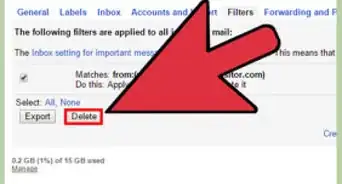
1Stop spam emails with filters. This is the easiest way to stop spam emails. If you are feeling that a certain website is spamming your inbox, you can set up a filter, as follows.
-
2Click the down arrow in your search box at the top of the page. A window that allows you to specify your search criteria will appear.
-
3Enter your search criteria. If you want to check that your search has worked correctly, click the Search button. Clicking the down arrow again will bring the window back with the same search criteria you entered.
-
4Click Create Filter with This Search at the bottom of the search window.
-
5Choose the action you'd like for these messages. Do this by checking the appropriate box. (In the case of spam emails, it is suggested that you check "Delete it.")
-
6Click Create Filter.


Part 3
Part 3 of 4:Removing spam emails
-
1Mark the unwanted emails from particular websites or people.
-
2Click the Spam link along the left side of any Gmail page. (If you don't see Spam along the left side of your Gmail page, click the More drop-down menu at the bottom of your labels list.)
-
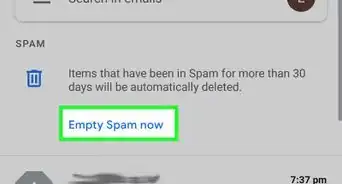
3Select the messages you'd like to delete and click Delete forever. Or, delete everything by clicking Delete all spam messages now.
- Gmail will learn that some messages are spam and treat them as such in future. However, it doesn't always get it right; unopened emails that you have been meaning to get around to but then delete in a clean-up without actually wanting to unsubscribe can end up being treated as spam. You'll need to retrieve such emails from the Spam folder so that Gmail learns to leave them alone again.


Part 4
Part 4 of 4:Organizing your Gmail with Labels
-
1Sort your emails to help you prioritize what you deal with. Gmail has three categories of mails sorted for the incoming mails such as Primary, Social, and Promotion. You can add more categories or combined into one category. Creating Labels will help you to determine which mail is spam and which mail is important.
-
2Add Labels in the settings. Go to Settings -> Labels -> Create New Label. When you make a Label, you can select a mail and organize it to be sent to a certain Label upon the arrival by clicking on the down arrow beside the search box and putting the email address or a group of phrase.


Community Q&A
-
QuestionHow can I prevent some emails from going directly to the spam folder in Gmail?
 Community AnswerThere should be an option to mark emails as safe or from a trusted sender. You can also add the senders to your safe list.
 -
QuestionHow do I stop spam mail in Gmail? Is there a way to block them from even entering the spam box?
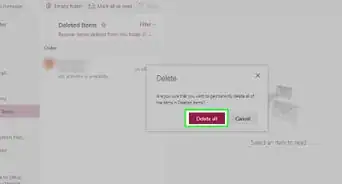
 Community AnswerFrom everything I've read and searched online, there is no way to do this. Filter spam to trash, then the spam box will never fill up. All your spam will go to the trash folder. Then just open the trash box and click "Empty trash." I'd love it if we could COMPLETELY block spam, but that doesn't seem to be an option.
References
- https://support.google.com/mail/answer/8151?hl=en&ref_topic=3395030 – research source
- https://support.google.com/mail/answer/6602?hl=en&ref_topic=3395030 – research source