This article was co-authored by wikiHow Staff. Our trained team of editors and researchers validate articles for accuracy and comprehensiveness. wikiHow's Content Management Team carefully monitors the work from our editorial staff to ensure that each article is backed by trusted research and meets our high quality standards.
The wikiHow Tech Team also followed the article's instructions and verified that they work.
This article has been viewed 3,991,581 times.
Learn more...
This wikiHow teaches you how to create a mailing list from a set of Gmail contacts. Although it's not possible to create a Gmail list on a phone or tablet, it's easy to do on a computer. All you'll need to do is open the Google Contacts website, select the contacts you want to add to your list, and create a new label for that specific group. Once you've created your mailing list label, just add the label to the BCC field of each message you want to send to your list.
Steps
-
1Go to https://contacts.google.com in a web browser. If you're signed in to your Google account, this opens a page that displays your contacts. If you're not signed in, sign in now to view the page.
- If you're logged into the wrong account, click your profile icon in the upper-right side of the page and then either select the proper account (if it's signed in) or click Add account and enter your email address and password when prompted.
-
2Select the contacts you want to add to your list. To select a contact, hover your mouse cursor over the person's name, and then click the empty box to the left of their name. Do this for everyone you want to include in the list.
-
3
-
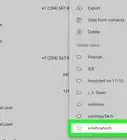
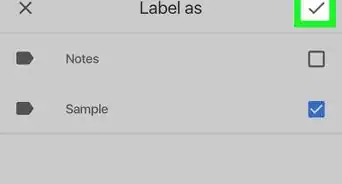
4Click + Create label. It's at the bottom of the pop-up window.
-
5Type a name for your mailing list. The name you enter here is how your mailing list will be represented in your contacts. This is the name that you'll type into the "To" field later when addressing an email to your list.
-
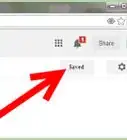
6Click Save to save your new mailing list. It's at the bottom of the pop-up window.
-
7Go to https://www.gmail.com in your web browser. Now that you have a mailing list, you can easily create a new message in Gmail.
-
8Click + COMPOSE. It's at the top-left corner of your Gmail inbox.
-
9Click BCC. You'll see this in the upper-right corner of the new message. This expands the BCC field below the "To" field at the top of the message.
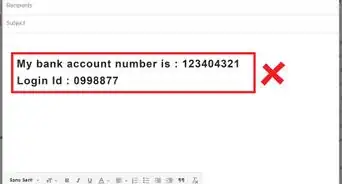
- As long as you add the name of your mailing list to the BCC field instead of the To or CC field, the people on your mailing list won't see the email addresses of the other people on the list. This protects the privacy of your mailing list members and is good mailing list etiquette.
- Technically, you can add this label to the To: field instead. But if you do that, everyone on the list will be able to see and reply to all other members. Don't do this unless everyone on the list specifically asked to join a discussion list—when people reply, it could create way too many emails for list members, and there'd be no way for them to unsubscribe.
-
10Type the mailing list label name into the "BCC" field. There are two ways to do this:
- The simplest way is to start typing the name of your mailing list into the "BCC" field. When the mailing list label appears as a suggestion, click its name to quickly add the mailing list members to the "BCC" field.
- If you have trouble finding your mailing list label this way, click BCC in the upper-left corner of the window (below the "To" field) to expand your list of contacts. Select the mailing list label from the drop-down menu at the top-right corner, check the "Select All" box, and then click INSERT at the bottom-right.
-
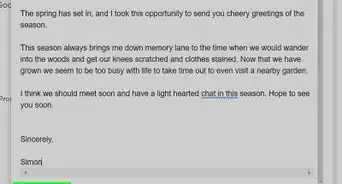
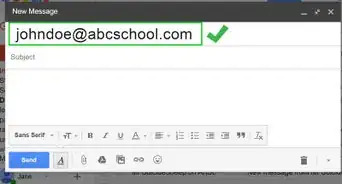
11Write your email. Now you can enter a subject for your email into the "Subject" field, and type the contents of your message into the larger typing area below that.
-
12Click Send. It's a blue button in the bottom-left corner of the "New Message" window. This sends your email message to everyone on the mailing list.


Community Q&A
-
QuestionHow do I hide the email addresses of an email group when sending group emails?
 Community AnswerWhen you send the email, put your name under "to" and put the full group name in BCC instead of "to".
 -
QuestionHow do I send out an email to my email list without the recipients knowing who else it was sent to?
 Community AnswerSend it to yourself as the primary recipient, then add your email list members' addresses under BCC (stands for blind carbon copy). This sends a copy to you as well as to your recipients.
 -
QuestionI have 36 addresses in the label folder. How do I send an email to all of them?Community AnswerCompose a new message and type the name of the folder into the "to" field. The 36 addresses should appear.
-
QuestionHow can I hide email addresses from recipients on my mailing list?
 Community AnswerPut their email addresses in the Bcc (blind carbon copy) section of the address section of the email. No one else will be able to see their email addresses.
 -
QuestionWhy don't I have a new group option?
 Community AnswerThe new version of Google Contacts works with Labels instead of Groups. Just add a label instead of a new group, then continue with the same steps as explained.
 -
QuestionHow do I remove a contact from a group?Community AnswerGo into a conversation with the contact you desire to remove from the group, or the person's G+ profile. Hover over the profile picture/name, and a drop-down menu of the group(s) the person is in should come up. Un-select the box of the group from which you wish to remove the contact.
-
QuestionI want to make a contact group with email addresses that I do not want permanently in my Contacts. Can I make a list using the emails rather than my contacts (like I can in MSOutlook)?Community AnswerYou can create a list of the emails in a spreadsheet with each email in a different cell of the spreadsheet. When you want to email them, just open the spreadsheet and copy the entire row of email addresses. Then, go to your Gmail and paste them into the "To" field. This will put all the email addresses into your outgoing email without creating them as contacts.
-
QuestionHow can I add contacts to a group if I don't already have them in my contacts list?Community AnswerCreate contacts for them and then afterward put the contacts in the group.
-
QuestionHow many email addresses can I send one email to at a time?Community AnswerAs many as you want.
-
QuestionIs there a way to add multiple lists of names to the contact list?Community AnswerWith contact groups, you can easily organize your contacts making it easier to email a specific set of people. For example, if you created a contact group called "Soccer club," you could just send a message to that group, rather than sending out an email to 50 different people. Never leave somebody off an email again. To create a contact group: Click Gmail at the top-left corner of your Gmail page, then choose Contacts. Select contacts that you want to add to a group, click the Groups button, then create new. Enter the name of the group. Click OK.
wikiHow Video: How to Make a Mailing List in Gmail
Warnings
- You can't use your mailing list in the Gmail mobile app.Thanks!
About This Article

1. Go to https://contacts.google.com.
2. Select the contacts you want to add.
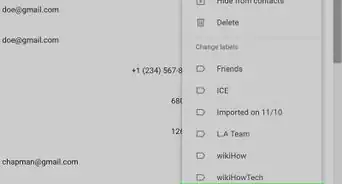
3. Click the label icon and select + Create label.
4. Name the label and click Save.
5. Create a new message in Gmail.
6. Click BCC.
7. Add the label to the BCC field.
8. Type and send your message.