X
wikiHow is a “wiki,” similar to Wikipedia, which means that many of our articles are co-written by multiple authors. To create this article, 13 people, some anonymous, worked to edit and improve it over time.
This article has been viewed 22,335 times.
Learn more...
Have you ever, EVER wanted to use your dear ol' laptop or desktop at someone's house? Well, thanks to XP's technology, it's as easy as 1, 2, 3!
Steps

Method 1
Method 1 of 2:On Your Friend's/Co-worker's Computer
Method 1
-
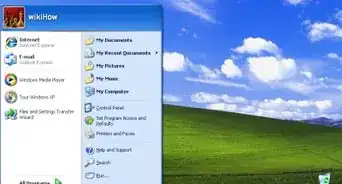
1Go to START, right click MY COMPUTER
-
2Select PROPERTIES, click the REMOTE tab
-
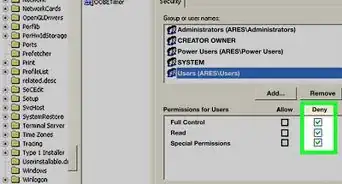
3Tick “allow users to connect remotely to this computer”
-
4Then OK
-
5Go to START again, Open CONTROL PANEL,
-
6Select USER ACCOUNTS, select which account you want to use under PICK ACCOUNT TO CHANGE”
-
7Choose “CREATE A PASSWORD”
-
8Type in the new password and confirm it, then click “CREATE PASSWORD.
-
9Close the Control Panel window.


Method 2
Method 2 of 2:On Your Computer
Method 2
-
1Go to START, select ALL PROGRAMS
-
2Select ACCESSORIES, select COMMUNICATIONS, then click REMOTE DESKTOP CONNECTION, A window pops, with the computer BAR empty
-
3Type in the IP ADDRESS or the NAME OF THE COMPUTER
-
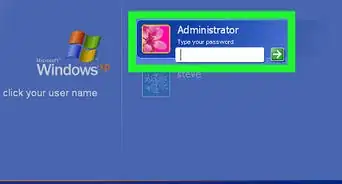
4Then click CONNECT, You will be asked for the USERNAME and PASSWORD
-
5Put in the account name and password, then OK. It will open the desktop of the other computer.
-
6Ta-da! Your are now on the desktop or laptop you chose!


Warnings
- The password must be activated before RDC can workThanks!
- If there is a user on the other computer, RDC will log out the other user.Thanks!
- IP addresses are better than Computer namesThanks!