This article was co-authored by wikiHow Staff. Our trained team of editors and researchers validate articles for accuracy and comprehensiveness. wikiHow's Content Management Team carefully monitors the work from our editorial staff to ensure that each article is backed by trusted research and meets our high quality standards.
The wikiHow Tech Team also followed the article's instructions and verified that they work.
Learn more...
This wikiHow teaches you how to quickly reply to an email message with Gmail's smart reply presets, using a desktop internet browser.
Steps
-
1Open Gmail in your internet browser. Type mail.google.com into the address bar, and hit ↵ Enter or ⏎ Return on your keyboard.
- If you're not automatically logged in, click the SIGN IN button on the top-right, and sign in with your email or phone number.
- If you're not using the latest version of Gmail, click on Settings and then select "Try the new Mail".
-
2Click the email you want to reply to. This will open the email message.
-
3Check the available smart replies you can choose from. Your smart reply options are shown just above the Reply button at the bottom of the email message.
- Some emails may not have a smart reply option. In this case, you won't see any options here.
-
4Click the smart reply you want to use. This will create a new reply message with the selected smart reply option.
-
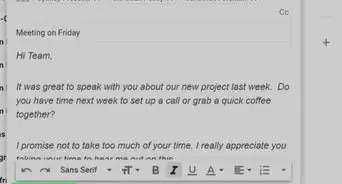
5Enter any additional messages in your reply (optional). Your new reply message only includes the selected smart reply phrase. You can edit the smart reply in the reply field, or type in something new.
-
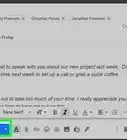
6Click the Send button. This is a blue button at the bottom of your reply message. It will send your email.


About This Article

1. Open Gmail and sign in.
2. Click an email.
3. Check smart replies at the bottom.
4. Click a smart reply.
5. Enter any other comments in your reply.
6. Click Send.