X
This article was written by Nicole Levine, MFA. Nicole Levine is a Technology Writer and Editor for wikiHow. She has more than 20 years of experience creating technical documentation and leading support teams at major web hosting and software companies. Nicole also holds an MFA in Creative Writing from Portland State University and teaches composition, fiction-writing, and zine-making at various institutions.
The wikiHow Tech Team also followed the article's instructions and verified that they work.
This article has been viewed 3,024 times.
This wikiHow teaches you how to insert Bitmoji characters into Gmail messages on an iPhone or iPad.
Steps
Method 1
Method 1 of 2:Using the Bitmoji Keyboard
Method 1
-
1Set up the Bitmoji keyboard on your iPhone or iPad. If you haven’t used the Bitmoji keyboard, you’ll need to set it up first. See Add the Bitmoji Keyboard on iPhone to learn how.
-
2Open the Gmail app. It’s a white icon with a red and white envelope inside. You’ll usually find it on the home screen.Advertisement
-
3Tap the new message icon. It’s the red circle with a pencil at the bottom-right corner of the screen.
-
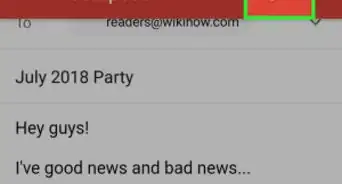
4Add a recipient to the “To” field. You can either type an email address or select a contact from the drop-down menu.
- You can also add a subject if you wish.
-
5Tap the “Compose email” area. This opens the keyboard.
-
6Tap and hold the globe key. It’s near the keyboard’s bottom-left corner. A list of keyboards will appear.
-
7Tap Bitmoji. The Bitmoji keyboard now replaces the regular one.
-
8Tap the Bitmoji you want to send. To browse for options, swipe left through each category, then swipe down to see its options. Once you tap your selection, you’ll see a message that confirms it’s copied and ready to paste.
-
9Tap and hold the message area. The “Paste” option will appear.
-
10Tap Paste. The select Bitmoji will appear in the message.
- You can repeat these steps to add additional Bitmoji if you wish.
-
11Tap the send icon. It’s the paper airplane icon at the top-right corner of the screen. The Bitmoji will be delivered to the selected recipient.Advertisement


Method 2
Method 2 of 2:Using the Bitmoji App
Method 2
-
1Open the Bitmoji app. You’ll usually find it on the home screen. Look for a green icon with a winking chat bubble inside.
-
2Browse for a Bitmoji. Tap one of the category icons at the bottom of the screen to see options in that category, and then scroll down to see relevant illustrations.
-
3Tap your desired Bitmoji. A pop-up will appear containing several app icons.
-
4
-
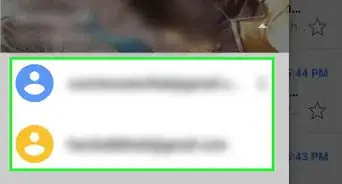
5Select a recipient. Type an email address into the “To:” field, or tap the downward-pointing arrow to select a contact.
-
6Add a subject. This is just a line that describes the content of the message.
-
7Tap the send button. It’s the paper airplane at the top-right corner of the screen. Your Bitmoji message will be delivered to the selected recipient.Advertisement




About This Article

Nicole Levine, MFA
Tech Specialist
This article was written by Nicole Levine, MFA. Nicole Levine is a Technology Writer and Editor for wikiHow. She has more than 20 years of experience creating technical documentation and leading support teams at major web hosting and software companies. Nicole also holds an MFA in Creative Writing from Portland State University and teaches composition, fiction-writing, and zine-making at various institutions. This article has been viewed 3,024 times.
How helpful is this?
Co-authors: 2
Updated: May 25, 2021
Views: 3,024
Categories: Gmail | Ipad
Advertisement