wikiHow is a “wiki,” similar to Wikipedia, which means that many of our articles are co-written by multiple authors. To create this article, 43 people, some anonymous, worked to edit and improve it over time.
This article has been viewed 1,595,032 times.
Learn more...
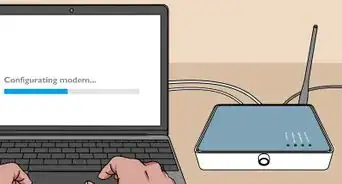
Wireless security is very important these days. You don't want anyone siphoning bandwidth or getting into your network to perform malicious attacks. Since every wireless router is different, this article will discuss the basics and use one of the most popular wireless routers, the Linksys WAP54G as an example. The steps for your router may differ. This guide assumes you are connected to your router (either through a network cable or over its wireless signal) using DHCP correctly.
Steps
-
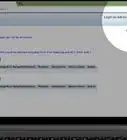
1Open your web browser and input your default gateway's IP address. To find this:
- Go to Start > run, and type cmd
- Type ipconfig and press enter. It will list the default gateway here. Once you have your default gateway address, open your web browser and type it in the URL bar.
-
2Input your router's username and password.
- Default for Linksys products is usually username: (blank) password: admin
- Default for Netgear routers is Username: admin password: password
- Default for Dlink routers is Username: Admin; Password: (blank).
- Default for Siemens routers is Username: Admin; Password: admin (all lowercase).
- Default for zyxel-p600-t1a is 1234
- Default User Names and Passwords can be found sometimes on the bottom of the router, on the label or using Google.
- If you are having trouble finding the UN and PW then try http://www.portforward.com this website is usually used for opening ports for P2P programs and games,but when it shows you how to open your ports it tells you the default UN and PW for the router. The router list is extensive.
-
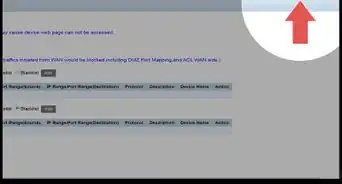
3If you are using the default username and password, go to the Administration tab to change it to something more secure. From the Router's user interface you will probably have a setting to log Users going through the router--enable it if not already.
-
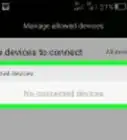
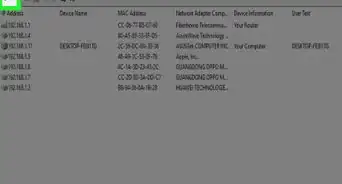
4Get a pen and paper, and use the steps shown above finding the default gateway to find your MAC or also called physical address of all computers/devices that use wifi/wireless in your home or that will be using it and write them down. From time to time check the log to see if any unknown addresses show up. If so, then someone is leeching off your internet. MAC/physical addresses are unique hexadecimal code that identifies each Network card inside every PC that uses Ethernet. No two MAC addresses are the same.


Method 1
Method 1 of 2:Finding who is on your network
-
1Navigate to the Setup tab.
-
2Scroll down until you see 'DHCP Server' if it is enabled, continue to the next step. If it isn't enabled, enable it.
-
3Click on the "Status" tab and then on "Local Network" just below the main tabs.
-
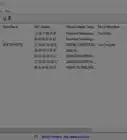
4Click the button that says "DHCP Clients Table". This list will tell you the computer name of everyone connected to your network on DHCP (DHCP automatically configures a computer's IP and DNS settings. This only works if everyone connected uses DHCP. If someone connects and uses their own static address, then this will not show them.)


Method 2
Method 2 of 2:Other Ways to Find who is on your network


Community Q&A
-
QuestionHow can I receive a network Wi-Fi password on an iPhone?
 Community AnswerThe only way to receive one would be if someone tells you what it is, since even if your phone has the password, you won't be able to see what it is.
Warnings
- Also make sure you do not screw up your network.Thanks!
- Make sure you have physical access to your router in case you need to reset it back to factory defaults.Thanks!
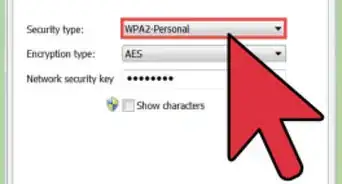
- Always make sure the security is WPA2-PSK and encryption is AESThanks!
-Connection-Step-12-Version-5.webp)


-Step-6-Version-5.webp)

-Connection-Step-12-Version-5.webp)