X
This article was written by Jack Lloyd. Jack Lloyd is a Technology Writer and Editor for wikiHow. He has over two years of experience writing and editing technology-related articles. He is technology enthusiast and an English teacher.
The wikiHow Tech Team also followed the article's instructions and verified that they work.
This article has been viewed 2,113,050 times.
This wikiHow teaches you how to change a wireless network's name. You can usually change your network's name from your router's page in a web browser, though you'll first need to find your router's address to access its page. If this doesn't work, resetting your router and then reconnecting to it should allow you to change the network name.
Steps
Part 1
Part 1 of 4:Finding Your Router's Address on Windows
Part 1
-
1
-
2Open Settings . Click the gear-shaped icon in the lower-left side of the Start menu. The Settings window will open.Advertisement
-
3
-
4Click the Status tab. You'll find this in the upper-left side of the window.
-
5Click View your network properties. This link is near the bottom of the page. Doing so opens a list of the different Internet connection types currently available on your computer.
-
6Scroll down to the "Wi-Fi" heading. It's near the bottom of the list.
-
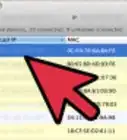
7Review the "Default gateway" address. The number to the right of the "Default gateway" heading in the "Wi-Fi" list is the address you'll enter in your web browser to access your router's page.
- The address number will usually resemble something like "192.168.1.1" or "10.0.0.1".
Advertisement


Part 2
Part 2 of 4:Finding Your Router's Address on Mac
Part 2
-
1
-
2Click System Preferences…. It's in the drop-down menu. The System Preferences window will open.
-
3Click Network. This globe-shaped icon is in the System Preferences window. Clicking it opens a new window.
-
4Click Advanced…. It's in the lower-right side of the Network window. A pop-up window will appear.
-
5Click the TCP/IP tab. This is at the top of the pop-up window.
-
6Review the "Router" address. You'll find this number to the right of the "Router" heading in the middle of the page. This is the number you'll enter into your web browser in order to access your router's page.
- The address number will usually resemble something like "192.168.1.1" or "10.0.0.1".
Advertisement


Part 3
Part 3 of 4:Changing Your Network's Name
Part 3
-
1Open a web browser. Default web browsers for Windows and Mac computers are Microsoft Edge and Safari, respectively, but you can use any web browser for this step.
-
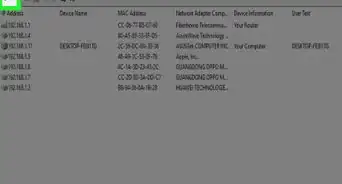
2Enter your router's address. Type into the address bar the address number you found in the last method, then press ↵ Enter. Doing so will take you to your router's Settings page.
- For some specialized routers, such as Google WiFi routers, you'll be prompted to download an app onto your smartphone and proceed using the phone app to configure your network.
-
3Enter the password for your router if prompted. If you set a specific password for the settings page when you installed the router, you'll need to enter it to continue.
-
4Select your router's current name. Since each router's Settings page is different, this step will vary. Typically, you can either click the router's name, or click a Settings option to go to the general section of your router's settings.
-
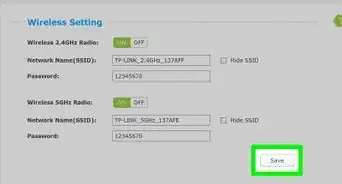
5Look for the SSID field. It may also be labeled "Network Name", "Wireless Network Name", "Router Name", or something similar.
- There will likely be a name already in the SSID field (e.g., "Belkin.be") that correlates with your network's current name.
-
6Enter a new name for your wireless network. This should be the name you want to see while selecting your network from your computer's Wi-Fi menu.
-
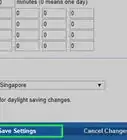
7Save your new network name. Click Apply, Save Settings, Save, or whatever your configuration screen uses to finalize the process. This will save your new network name.
- In some cases, you may have to click an image of a floppy disc or a checkmark.
- Changing your router's settings will often cause the router to reboot.
Advertisement


Part 4
Part 4 of 4:Resetting Your Router to Factory Settings
Part 4
-
1Understand when to use this method. If your router's page doesn't allow you to change your network's name or your network name changes aren't saving, you can reset the router to its factory settings and then assign a new name to the network when first signing into it. Since resetting the router also disconnects any currently connected items, this should be a last resort.
- Resetting your router will change the network's name back to the name (or "SSID") printed on the back or bottom of the router.
- If you reset your router, you'll need to reconnect manually every Internet-connected item in your home to the router.
-
2Make sure that the router has a password sticker. If you've had your router for a few years, the factory password sticker may have faded or been damaged. You'll usually find the password sticker on the back or bottom of the router.
- If you don't have the factory password, you won't be able to sign into the network with the necessary password after resetting your router.
-
3Find the router's "Reset" button. This is usually a small, recessed button on the back of the router.
-
4Press and hold the "Reset" button for 30 seconds. You may need to use a bent paperclip or a needle to do this.
-
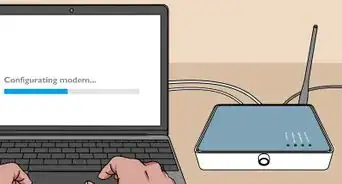
5Release the button after 30 seconds. Your router should turn itself off and begin rebooting.
-
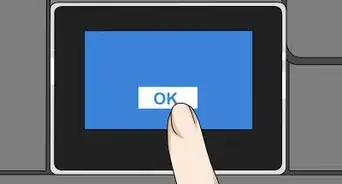
6Allow the router to finish resetting. Once the router is on again, you can proceed.
-
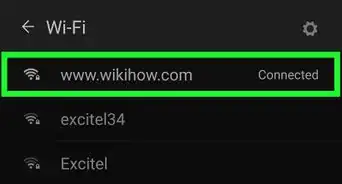
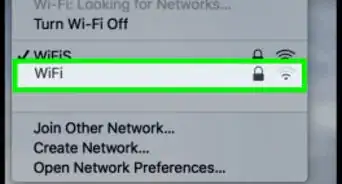
7Connect to the router to a computer. In most cases, you'll be given the option of changing the router's name once you connect to it from your computer's Wi-Fi menu:
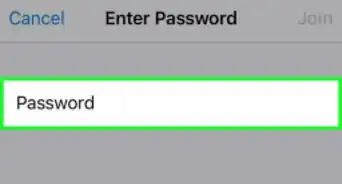
- Windows — Click the Wi-Fi icon in the lower-right corner of the screen, select your router's factory name, click Connect, enter the factory password, and click Next. You can then enter the network name you want to use when prompted.
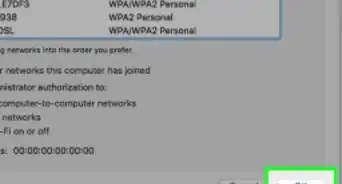
- Mac — Click the Wi-Fi icon in the upper-right corner of the screen, select your router's factory name, enter the factory password, and click Join. You can then enter the network name you want to use when prompted.
Advertisement


Community Q&A
-
QuestionHow do I change the SSID Name even if is unchangeable?
 Community AnswerMaybe there is some option holding you from changing the SSID, if not reset the router and try again.
 -
QuestionHow do I change my internet address?
 Community AnswerYour ISP could provide a Dynamic IP, which changes your IP every once in a while. If not, you can restart the router.
Warnings
- Always make sure your wireless network is password-protected.Thanks!
Advertisement
-Connection-Step-12-Version-5.webp)

-Step-6-Version-5.webp)
About This Article
Advertisement


-Connection-Step-12-Version-5.webp)