X
This article was co-authored by wikiHow staff writer, Jack Lloyd. Jack Lloyd is a Technology Writer and Editor for wikiHow. He has over two years of experience writing and editing technology-related articles. He is technology enthusiast and an English teacher.
The wikiHow Tech Team also followed the article's instructions and verified that they work.
This article has been viewed 97,193 times.
Learn more...
This wikiHow teaches you how to ensure that Internet Explorer stores the passwords for sites you sign into. Doing so will make signing back into those sites and any connecting services much quicker since you won't have to enter your password.
Steps
-
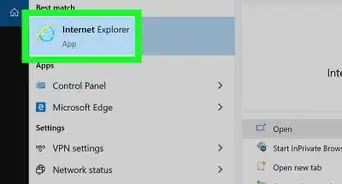
1Open Internet Explorer. Click or double-click the Internet Explorer app icon, which resembles a light-blue "e" with a yellow band around it.
-
2Click the "Settings" icon. It's in the upper-right side of the window. A drop-down menu will appear.Advertisement
-
3Click Internet options. This option is at the bottom of the drop-down menu. Clicking it opens the Internet Options pop-up window.
-
4Click the Content tab. It's at the top of the Internet Options window.
-
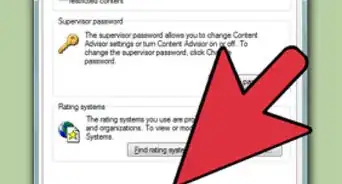
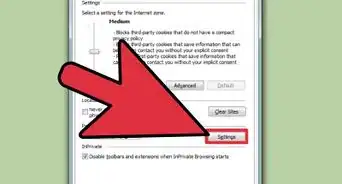
5Click Settings. This button is below and to the right of the "AutoComplete" heading in the middle of the page.
- Don't click the Settings button below the "Feeds and Web Slices" heading—the button there opens a different settings menu.
-
6Check the "Usernames and passwords on forms" box. This option is in the middle of the AutoComplete window.
-
7Check the "Ask me before saving passwords" box. It's near the bottom of the AutoComplete window.
-
8Click OK. You'll find this at the bottom of the AutoComplete window.
-
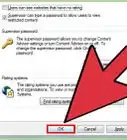
9Click OK. It's at the bottom of the Internet Options window. Doing so saves and applies your changes.
-
10Log into a website. Go to a site for which you need to sign in (e.g., Facebook), then enter your login information and press ↵ Enter.
-
11Click Yes when prompted. If Internet Explorer offers to save your password, doing this will confirm the choice and add your password to Internet Explorer's list of saved passwords.
- Internet Explorer won't save passwords for every site you visit. If you don't see a pop-up asking if you want Internet Explorer to save your password, the site won't allow Internet Explorer to save your password.
Advertisement


Community Q&A
-
QuestionWhat do I do if the save password icon doesn't pop up?
 Community AnswerYou will have to restart the program and try again.
Warnings
- Internet Explorer isn't considered as secure as more modern options such as Edge, Chrome, or Firefox.Thanks!
Advertisement



About This Article

Jack Lloyd
wikiHow Staff Writer
This article was co-authored by wikiHow staff writer, Jack Lloyd. Jack Lloyd is a Technology Writer and Editor for wikiHow. He has over two years of experience writing and editing technology-related articles. He is technology enthusiast and an English teacher. This article has been viewed 97,193 times.
How helpful is this?
Co-authors: 6
Updated: April 2, 2020
Views: 97,193
Categories: Internet Explorer
Advertisement