This article was co-authored by wikiHow Staff. Our trained team of editors and researchers validate articles for accuracy and comprehensiveness. wikiHow's Content Management Team carefully monitors the work from our editorial staff to ensure that each article is backed by trusted research and meets our high quality standards.
The wikiHow Tech Team also followed the article's instructions and verified that they work.
This article has been viewed 710,283 times.
Learn more...
This wikiHow teaches you how to create a shortcut from your Windows desktop that opens directly to a website in Internet Explorer.
Steps


Method 1
Method 1 of 3:Right-Clicking on a Web Page


Method 2
Method 2 of 3:Dragging and Dropping from the Search Bar
-
1Click on the "tiling" icon. It's two overlapping squares in the upper-right of corner of the Explorer window.
- Do this to minimize the window so an area of your Windows desktop is visible.
-
2Click on and hold the icon to the left of the URL. It's on the far left side of the search bar.
-
3Drag the icon onto your desktop.
-
4Release the click. A shortcut to the website you were browsing will appear on your desktop.Advertisement


Method 3
Method 3 of 3:Right-Clicking on the Windows Desktop
-
1Copy the URL in the Internet Explorer search bar. To do so, click anywhere in the search bar, press Ctrl + A to highlight the URL, and Ctrl + C to copy it.
-
2Right-click on your Windows desktop.
-
3Click on New. It's near the middle of the menu.
-
4Click on Shortcut. It's near the top of the menu.
-
5Click in the "Type a location of the item:" field.
-
6Press Ctrl + V. This will paste the website's URL into the field.
-
7Click on Next. It's in the lower-right corner of the dialog box.
-
8Name the shortcut. Do so by typing it into the field labeled "Type a name for this shortcut:".
- If you do nothing, the shortcut will be labeled "New Internet Shortcut."
-
9Click on Finish. A shortcut to the website whose address you entered will appear on your desktop.Advertisement


Community Q&A
-
QuestionHow do I create a shortcut in Windows 10?
 Community AnswerFirst, copy the address of the website that you want to create a shortcut to. Right click on the desktop, and click on New --> shortcut. Paste the address into the box that will appear, and press OK.




About This Article

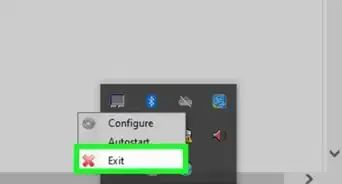
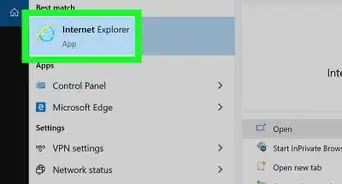
1. Open Internet Explorer.
2. Go to a website.
3. Right-click on an empty space.
4. Click on Create Shortcut.
5. Click on Yes.