X
wikiHow is a “wiki,” similar to Wikipedia, which means that many of our articles are co-written by multiple authors. To create this article, volunteer authors worked to edit and improve it over time.
This article has been viewed 3,044 times.
Learn more...
Twitter now lets you add GIFs, images, and videos to your retweets. This wikiHow teaches you how to retweet with added multimedia on Twitter.
Steps
Part 1
Part 1 of 2:On the Twitter Website
Part 1
-
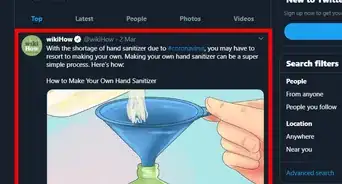
1Find a tweet you want to retweet. First, go to www.twitter.com in your web browser and log in with your account. Then navigate to a tweet to retweet with multimedia. It can be your own tweet, if you'd like.
-
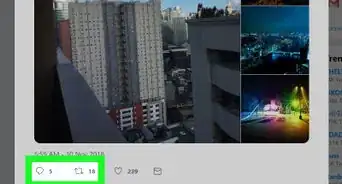
2Click on the “Retweet” button. The retweet button will be located at the bottom of the tweet, between the “Reply” and “Favorite” options. A context menu will appear after you select it.
-
3Click on the Retweet with comment option. The retweet panel will pop-up on your screen.
-
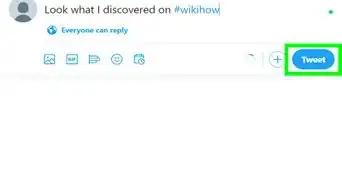
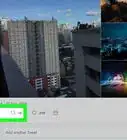
4Add a GIF, photo or video to your retweet. Click on the photo icon from the bottom of the tweet and select a media file from your computer. You can also write something in the “Add a comment” field.
- If you want to add a GIF from the Twitter library, click on the GIF icon to search for and select your GIF.
-
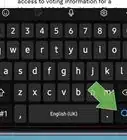
5Retweet the tweet. Click on the Retweet button, at the top-right corner of the Tweet box.
-
6See the original tweet appear in a smaller box, under your post. That's it!


Part 2
Part 2 of 2:On the Twitter App for Android and iOS
Part 2
-
1Launch the Twitter app. Log in with your account, if you haven't already done so. Then find a tweet to retweet.
- Make sure that your Twitter app is up to date. Click here to check it.
-
2Tap on the “Retweet” button. You can find it at the bottom of the tweet, near the “Reply” icon.
-
3Select the Retweet with comment option. This will open a new window.
-
4Add multimedia to your retweet. Tap on the photo icon from the bottom to add images, video or GIF to your tweet. You can also add a comment to the post.
- If you want to add a GIF from Twitter, click on the GIF icon, near the photo option and search for your favourite one.
-
5Tap on the Retweet button to share with your followers. Once you're done, move to your profile tab for view your retweet.
-
6Finished. You can also retweet your own tweets with videos, images, and GIFs.