This article was co-authored by wikiHow Staff. Our trained team of editors and researchers validate articles for accuracy and comprehensiveness. wikiHow's Content Management Team carefully monitors the work from our editorial staff to ensure that each article is backed by trusted research and meets our high quality standards.
This article has been viewed 83,500 times.
Learn more...
A System Restore can help fix problems that might be making your computer run slowly or stop responding. It will return your system to an earlier point in time. Your computer automatically creates Restore Points that allow you to restore previous settings, systems or programs. Don’t worry! This will not affect your personal files, data or photos.
Steps
Method 1
Method 1 of 2:Performing a System Restore
-
1Open the Start menu. This is the “Window” icon in the bottom left corner of your screen.
-
2Click on the All Programs link. This is located at the bottom of the list of frequently used programs.
- Alternatively, you can click on Help and Support and type in “system restore” in the search bar. This will give you a detailed description of what a System Restore is and include a link to open the System Restore guide. You can skip to Step 6 if you want to use the Help and Support menu.
-
3Open the Accessories folder. This is where all of the programs that are saved to your computer by default are located.
-
4Open the System Tools folder. This is where you manage system events and performance on your computer.
-
5Click on the System Restore guide. This will guide you through the restoration process.
-
6Select Restore my computer to an earlier time. Click Next to continue.
- You can force the system to create a Restore Point before you install a new program or operating system. That way, if anything goes wrong, it will be obvious which Restore Point you want to go back to.
-
7Select a Date to restore your system to. Choose a date on which your computer was running fine, for example, before a system update or installing a program.
-
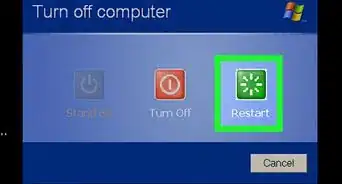
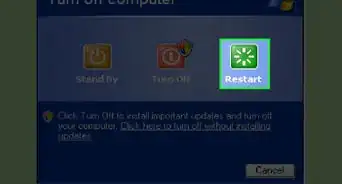
8Click Next to activate the System Restore. Your computer will shut down, perform the System Restore and restart again.
-
9Click OK when the system starts up. Congratulations! You did it! Your system has been restored to the date you selected and will be up and running like it used to.


Method 2
Method 2 of 2:Undoing a System Restore
-
1Repeat Steps 1-6 above. When you have mistakenly restored your system to an earlier configuration that you do not want, you can undo the last System Restore.
-
2Select Undo my last restoration. Click on Next to continue.
-
3Click Next to confirm. You are confirming that you want to undo the last System Restore from the Restore Point shown. Your computer will shut down, perform the operation and restart again.
-
4Click OK when the system starts up. Great job! You have reversed the System Restore and are back to the way things were.


Community Q&A
-
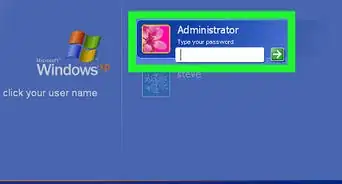
QuestionI bought a used XP computer. When I try to reformat it asks me for the administrative password. How do I get by this?
 Jhonson12312Community AnswerYou have to ask the old owner of that computer for the password.
 -
QuestionWhat do I write in the field?
 Community AnswerAnything. Whatever you write in the field, System Restore will function the same.
Warnings
- Software will be uninstalled if it was installed after the restore point.Thanks!





About This Article