X
wikiHow is a “wiki,” similar to Wikipedia, which means that many of our articles are co-written by multiple authors. To create this article, 11 people, some anonymous, worked to edit and improve it over time.
The wikiHow Tech Team also followed the article's instructions and verified that they work.
This article has been viewed 32,808 times.
Learn more...
Adding a new account on Mozilla Thunderbird is easy. But what to do when you want to remove the account? Follow the simple steps to remove an account from Thunderbird mail client
Steps
-
1Open Thunderbird application by searching for it on the Start menu or clicking its icon on the desktop.
-
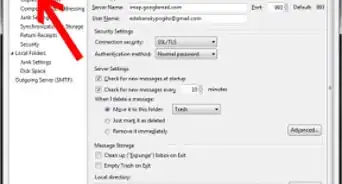
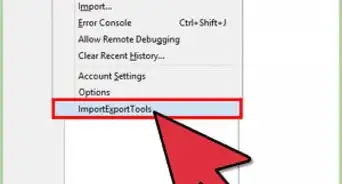
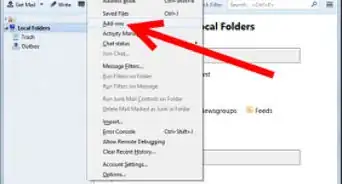
2Go to settings by clicking on the top right corner button.
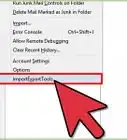
- Hover your mouse to "Option" and select 'Account Settings' option in it.
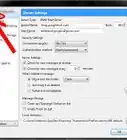
- An Account Setting dialog box will appear.
Advertisement -
3Select the account you want to delete.
-
4Click on 'Account Action' button located in the bottom left of dialog box.
- In it choose the option 'Remove Account'. Click OK button to apply changes.
Advertisement



About This Article
Advertisement