X
wikiHow is a “wiki,” similar to Wikipedia, which means that many of our articles are co-written by multiple authors. To create this article, 13 people, some anonymous, worked to edit and improve it over time.
This article has been viewed 327,722 times.
Learn more...
This article will guide you through the process to remove Content Advisor Password set in Internet Explorer, to restrict access to some websites.
Steps
-
1Click on Start.
-
2Click on Run.Advertisement
-
3Type regedit, and press Enter.
-
4Click on the + sign to the left of HKEY_LOCAL_MACHINE.
-
5Repeat Step 4 until you reach Software → Microsoft → Windows → Current Version → Policies.
-
6Click on the Ratings folder.
-
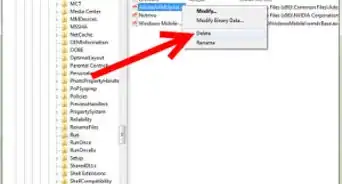
7On the right side of the Registry Editor windows, you would see an item named as "Key", right-click on it and select Delete.
-
8Close the Registry Editor.
-
9Restart the computer and run Internet Explorer again. Choose View and then Internet Options. Click on Tools, Internet Options, for IE 5 or greater.
-
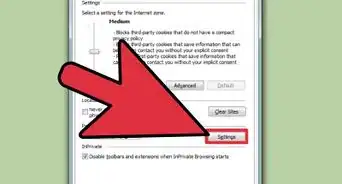
10Click on the Content tab and click on Disable. When IE asks for the password, leave it as blank, and click on OK. This will disable the Content Advisor Password in Internet Explorer.Advertisement


Community Q&A
-
QuestionIs there a way to stop constantly having to enter my password when the PC closes a window?
 Community AnswerSometimes when you enter your password, it asks you if you would like your computer to remember the password. Click the "remember me."
Warnings
- Registry Editor can make your computer crash. Therefore, avoid experimenting with the registries.Thanks!
- If you are not sure whether you are following the Steps correctly, abort the process by simply closing the Registry Editor.Thanks!
Advertisement
Things You'll Need
- Windows 2000/XP Operating System
- Internet Explorer 5 or above.











About This Article
Advertisement