X
wikiHow is a “wiki,” similar to Wikipedia, which means that many of our articles are co-written by multiple authors. To create this article, volunteer authors worked to edit and improve it over time.
This article has been viewed 48,921 times.
Learn more...
Just like what you can do with any Internet browser, browsing and printing work hand-in-hand. Learn how to print web pages in Firefox by following the steps in this article.
Steps
-
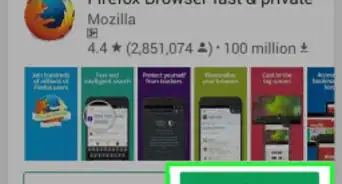
1Open your Mozilla Firefox browser.
-
2Browse to find the page you'd like to print.
-
3Click the orange "Firefox" button from the upper right corner of your screen.
-
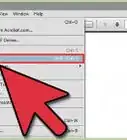
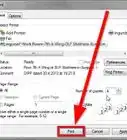
4Click the "Print" option. Click right on the word portion, when the item is highlighted.
-
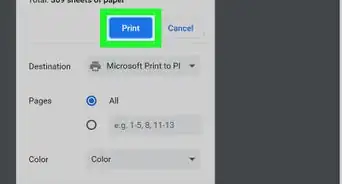
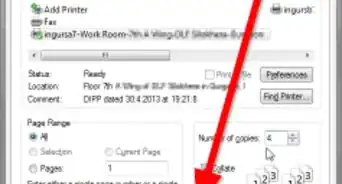
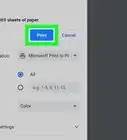
5Select the printer from the "Printer:Name" drop-down button on the selection bar.
-
6Select how many copies you want from the dialog box's "Copies" area.
-
7Select how much of the webpage you'd like to print OR leave the default set as ALL to print out all portions of the page. You also have the option of printing out separate pages of the webpage, and when you've selected words/phrases on the screen, you'll also have the "Selection" printing enabled for your convenience.


Community Q&A
-
QuestionI need to print more than just one screen. How do I do this?
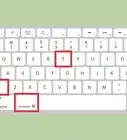
 Community AnswerJust press the "print screen" key on the top right of your keyboard.
Things You'll Need
- printer
- Mozilla Firefox browser
- web page
- computer mouse and keyboard