This article was written by Jack Lloyd. Jack Lloyd is a Technology Writer and Editor for wikiHow. He has over two years of experience writing and editing technology-related articles. He is technology enthusiast and an English teacher.
The wikiHow Tech Team also followed the article's instructions and verified that they work.
This article has been viewed 344,402 times.
This wikiHow teaches you how to save a copy of your Firefox browser's bookmarks onto your Windows or Mac computer. Keep in mind that you cannot use the Firefox mobile app to export bookmarks.
Steps
-
1Open Firefox. The Firefox app icon resembles an orange fox wrapped around a blue globe.
-
2Click ☰. It's in the top-right corner of the Firefox window. A drop-down menu will appear.
-
3Click Library. You'll see this option near the top of the drop-down menu.
-
4Click Bookmarks. It's near the middle of the drop-down menu. A new menu with all of your Firefox bookmarks will open.
-
5Click Show All Bookmarks. You'll find this link in the bottom-left corner of the drop-down menu. Doing so opens a new window.
-
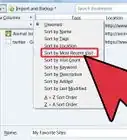
6Click Import and Backup. This option is the star-and-arrows icon at the top of the bookmarks library window. Clicking it prompts a drop-down menu.
- On Mac, click the Star icon at the top of the window.
-
7Click Export Bookmarks to HTML…. You'll find it near the bottom of the drop-down menu. A File Explorer (Windows) or Finder (Mac) window will open.
-
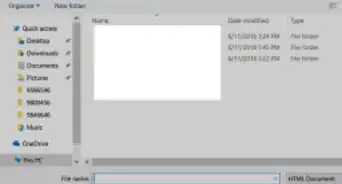
8Enter a name for your bookmarks file. Type the name that you want to use for your bookmarks (e.g., "bookmarks 2018") into the "File name" or "Name" text box.
-
9Select a save location. Click a folder on the left side of the window (e.g., Desktop). This is where your bookmarks file will be saved.
-
10Click Save. It's in the bottom-right corner of the window. Doing so will save your bookmarks file under your chosen name in your selected save location.
-
11Close the Library window. You can resume browsing Firefox at this point; closing the Library window won't delete your bookmarks or remove the exported Bookmarks file.[1]


Community Q&A
-
QuestionHow do I import bookmarks from Mozilla Firefox into Microsoft Edge?
 Community AnswerOpen Edge and go into the settings. Look for an option called "Import Favorites and other Info." (It's the 3rd or 4th option from the top.) Below that, click "Import from another Browser." Choose Firefox and click "Import."
Warnings
- It isn't possible to export your Firefox bookmarks on the mobile app version of Firefox.Thanks!
About This Article
1. Open the Firefox menu.
2. Click Library.
3. Click Bookmarks.
4. Click Show All Bookmarks.
5. Click Import and Backup.
6. Click Export Bookmarks to HTML.
7. Name the file and click Save.