X
This article was co-authored by wikiHow Staff. Our trained team of editors and researchers validate articles for accuracy and comprehensiveness. wikiHow's Content Management Team carefully monitors the work from our editorial staff to ensure that each article is backed by trusted research and meets our high quality standards.
This article has been viewed 13,232 times.
Learn more...
The Instagram app allows you to upload photos and videos to share with friends and family. This wikiHow shows you how to post slow motion videos taken on your iOS device to Instagram.
Steps
Part 1
Part 1 of 2:Taking a Slow Motion Video
Part 1
-
1Tap the Camera app to open it. The Camera icon looks like a black camera on a grey background.
- If you can't find the Camera app, swipe right on your home screen and type "Camera" in the search box at the top of the screen. Tap the Camera icon from the search results.
-
2Tap "Slo-Mo" at the bottom of the screen. This puts your camera in slow-motion mode.
-
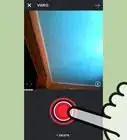
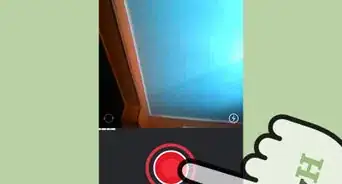
3Tap the red button to start recording video. The clock at the top of the screen starts running.
-
4Tap the red button to stop recording video. Your slow-motion video is saved to your Photo Library.


Part 2
Part 2 of 2:Posting a Slow Motion Video to Instagram
Part 2
-
1Tap the Instagram app to open it. The app looks like a stylized white camera on a purple background.
- If you can't find the Instagram app, swipe right on your home screen and type "Instagram" in the search box at the top of the screen. Tap the Instagram icon from the search results.
-
2Tap the Post icon. The Post icon looks like a plus sign inside a square and is in the middle bottom of your screen. This opens your Photo Library.
- If you haven't previously given Instagram access to your Photo Library, the app prompts you to do so here.
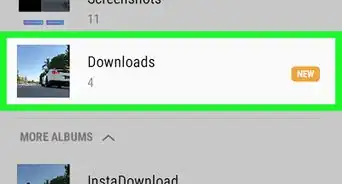
- The most recent addition to your Photo Library appears at the top of the screen. Other recent additions appear in smaller sizes at the bottom of your screen. Scroll down to look through your Photo Library in reverse chronological order.
-
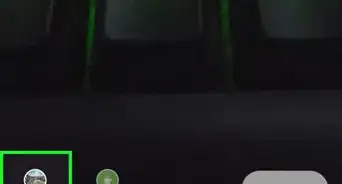
3Select the slow-motion video from your Library.
-
4Tap "Next." The "Next" option appears in the upper right corner of your screen. This brings you to the Customize screen.
- On this screen, you can choose to customize your video with filters, trims and covers. All of these features are optional.
-
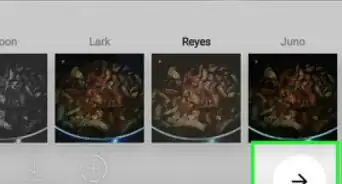
5Choose a filter and tap "Next." This brings you to the New Post screen.
-
6Add a caption (optional). On this screen, you can choose to caption the video, tag people that appear in the video, or add the location in which the video was taken.
-
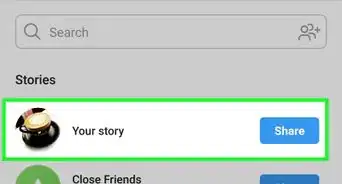
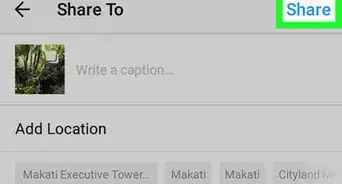
7Tap "Share." The "Share" option is in the upper right corner of the screen. Your slow-motion video is posted to Instagram.



About This Article

wikiHow Staff
wikiHow Staff Writer
This article was co-authored by wikiHow Staff. Our trained team of editors and researchers validate articles for accuracy and comprehensiveness. wikiHow's Content Management Team carefully monitors the work from our editorial staff to ensure that each article is backed by trusted research and meets our high quality standards. This article has been viewed 13,232 times.
How helpful is this?
Co-authors: 2
Updated: February 25, 2019
Views: 13,232
Categories: Instagram Videos