X
This article was written by Jack Lloyd. Jack Lloyd is a Technology Writer and Editor for wikiHow. He has over two years of experience writing and editing technology-related articles. He is technology enthusiast and an English teacher.
This article has been viewed 288,356 times.
This wikiHow teaches you how to turn on desktop notifications for Gmail. Desktop notifications cause a pop-up icon to appear whenever you receive a new email or chat in Gmail. Keep in mind that desktop notifications will only work in Google Chrome, Firefox, and Safari.
Steps
-
1Open Gmail. Go to https://www.gmail.com in your computer's web browser. This will open your Gmail inbox if you're logged in.
- If you aren't logged into Gmail, enter your email address and password when prompted.
-
2
-
3Click Settings. This is in the drop-down menu. Clicking it opens the Settings page.
-
4Click the General tab. It's in the upper-left side of the Settings page.
-
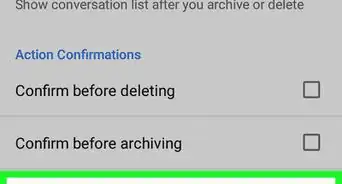
5Scroll down to the "Desktop Notifications" section. You'll find this near the middle of the Settings page.
-
6Select a notification setting. In the "Desktop Notifications" section, check the box next to one of the following options:
- New mail notifications on — Turns on desktop notifications for all incoming emails.
- Important mail notifications on — Turns on desktop notifications for emails marked as "Important" by Gmail.
-
7Scroll down and click Save Changes. It's at the bottom of the page. Doing so will save your changes and exit the Settings menu.
- You'll receive a desktop notification whenever your browser is open and an email matching your desktop notifications criteria arrives.


Community Q&A
-
QuestionWhat do I do if my email account doesn't make a sound even though notifications are on?
 Community AnswerGo in to settings, desktop notifications, and make sure the new email notification is on. Above that, press the link '' click here to enable desktop notification for Gmail '' and it should work.
 -
QuestionI have done all of these directions, but my Gmail notification icon still isn't coming up on my desktop. It just went away a few days ago. Any ideas?
 Community AnswerYou have to allow Chrome to display notifications in Windows (click the Start Menu and enter "notifications" in the Search box, go into Settings, then enable notifications for Chrome). You have to allow the Hangouts in Gmail as well. Finally, go into Chrome settings, click Show Advanced Settings, Click Content Settings under Advanced, and under Notifications, click Allow All Sites to Show Desktop Notifications.
Warnings
- Gmail browser notifications will only work if you have your browser open.Thanks!
About This Article
Article SummaryX
1. Sign in to Gmail.com.
2. Click the gear.
3. Click Settings.
4. Click General.
5. Select New mail notifications on.
6. Click Save changes.
Did this summary help you?