X
wikiHow is a “wiki,” similar to Wikipedia, which means that many of our articles are co-written by multiple authors. To create this article, volunteer authors worked to edit and improve it over time.
This article has been viewed 6,474 times.
Learn more...
Twitter introduced a new version of its site for the mobile web, Twitter Lite. If you want the old mobile Twitter design back, follow these steps to change your options.
Steps
-
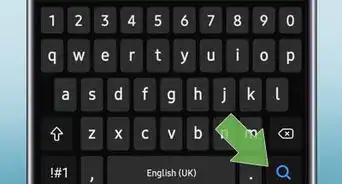
1Open the mobile version of Twitter. Go to mobile.twitter.com in Google Chrome and sign in with your account.
-
2
-
3Click on the Site setting option from the drop-down menu. If you want to quickly access the site settings page, copy and paste the following address in the URL box:
- chrome://settings/content/siteDetails?site=https%3A%2F%2Fmobile.twitter.com
-
4Navigate to the JavaScript option. Click on the “Allow (default)” box, next to the “JavaScript” option.
-
5Block the JavaScript. Choose “Block” from the box. Now go back to the mobile Twitter page.
-
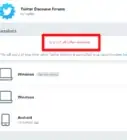
6Reload the page to see the effects. Sometimes, you have to click the Yes button, in order to access the legacy Twitter.
-
7Enjoy the legacy version of Twitter. If you want to go back to the new version, just turn on JavaScript. That's it!