This article was written by Darlene Antonelli, MA. Darlene Antonelli is a Technology Writer and Editor for wikiHow. Darlene has experience teaching college courses, writing technology-related articles, and working hands-on in the technology field. She earned an MA in Writing from Rowan University in 2012 and wrote her thesis on online communities and the personalities curated in such communities.
The wikiHow Tech Team also followed the article's instructions and verified that they work.
This article has been viewed 14,358 times.
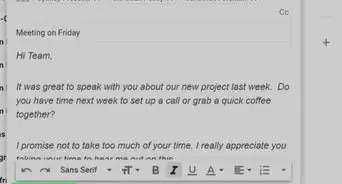
Gmail emails are automatically saved as drafts until you send. What’s really helpful is the fact that you can be working on an email from your phone, save it as a draft, then continue working on that email from your computer. But what if you don’t need that draft? This wikiHow teaches you how to delete a draft in Gmail using a computer and the app. Deleting a draft in Gmail is permanent and you can’t retrieve that draft again.
Steps
Method 1
Method 1 of 2:Using a Computer
-
1Open a browser. Popular ones include Firefox and Chrome.
-
2Navigate to https://www.google.com/gmail.
- Log in if prompted.
Advertisement -
3Click Drafts. This is in the menu to the left along with Inbox and Snoozed. All your email drafts will appear.
-
4
-
5Click Discard drafts. You'll see this button in the menu bar near the top of the page. Your selected draft will disappear.
- If you open a specific email draft, you can also click the trash can icon to delete that draft.
Advertisement


Method 2
Method 2 of 2:Using the Gmail App
-
1Open Gmail. This app icon looks like a white envelope with a red border. You can find this app on your home screen, in the app drawer, or by searching.
-
2Tap ☰. This is in the upper left of your screen. A menu will slide out from the side.
-
3Tap Drafts. Your drafts will open.
-
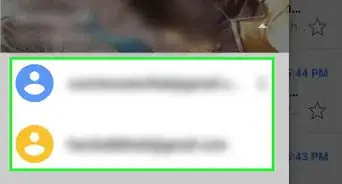
4Tap the circular icon next to your draft. You'll usually see a profile picture or a circle with a letter in it depending on who sent the original email. The icon will change colors to indicate that the draft is selected.
- You can select multiple drafts by clicking multiple icons.
-
5Advertisement


About This Article

1. Navigate to https://www.google.com/gmail.
2. Click Drafts.
3. Click the box next to the draft you want to delete.
4. Click Discard draft.