This article was co-authored by wikiHow Staff. Our trained team of editors and researchers validate articles for accuracy and comprehensiveness. wikiHow's Content Management Team carefully monitors the work from our editorial staff to ensure that each article is backed by trusted research and meets our high quality standards.
The wikiHow Tech Team also followed the article's instructions and verified that they work.
This article has been viewed 332,657 times.
Learn more...
Once you have worked on a browser for a long period of time, you may find that your list of bookmarks is becoming unwieldy or that you simply want to edit it down. You can easily delete a single bookmark from the Firefox window or multiple pages from the Bookmarks Library.
Steps
Method 1
Method 1 of 2:Deleting One Bookmark
-
1Open your Mozilla Firefox browser.
-
2Select the "Bookmarks" button from the file bar. From here, go to the page that you wish to delete.Advertisement
-
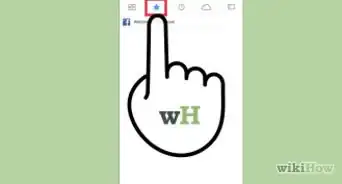
3Select the star icon. This is the icon in the upper right-hand corner of your browser to the right of your search bar. A menu entitled "Edit your Bookmarks" will appear.[1]
-
4Click on the box titled "Remove Bookmark." To determine if the bookmark was deleted reopen your browser and look under your "Bookmarks" icon in your toolbar.Advertisement


Method 2
Method 2 of 2:Deleting Multiple Bookmarks
-
1Open your Mozilla Firefox browser.
-
2Click on the Bookmarks button from your toolbar. From here a dropdown menu will appear where you can select "Show All Bookmarks." This will open your library window.[2]
-
3Click the folder you wish to edit. Select this folder from the left-hand pane. Its contents will appear in the right-hand window.
-
4Select the bookmarks you want to delete. Click on the file you want to delete and hold down the ⌘ Command key while you scroll over the other bookmarks you wish to delete.[3]
-
5Select the cog icon. This can be found in the upper left-hand corner and it will cause a dropdown menu to appear. Select "Delete."Advertisement


Community Q&A
-
QuestionNot all of my bookmarks are on the toolbar. How do I fix this?
 Community AnswerThere's a certain amount of bookmarks you can have on your toolbar. When the limit is reached, an arrow would appear, where if you click it, all of your bookmarks would appear.
 -
QuestionHow do I delete a bookmark on my iPhone 10?
 MapleyCommunity AnswerTap and hold the bookmark you want to delete. Your options will pop up from the bottom of your screen. On some versions, you will see a three vertical dots icon next to every bookmark. In this case, tap this button. It will bring up your bookmark options, which include deleting.
References
About This Article