This article was written by Jack Lloyd. Jack Lloyd is a Technology Writer and Editor for wikiHow. He has over two years of experience writing and editing technology-related articles. He is technology enthusiast and an English teacher.
The wikiHow Tech Team also followed the article's instructions and verified that they work.
This article has been viewed 546,701 times.
This wikiHow teaches you how to block a website on your computer's Firefox browser. While there isn't a built-in way to do this in Firefox's settings, you can use an add-on called "Block Site" to block sites for you. You can use the same add-on to unblock the sites that you initially blocked later if you so choose. If you want to unblock a site that you didn't block in the first place, Firefox has a built-in VPN that you can use with an existing VPN subscription, or you can use a proxy site.
Steps
Method 1
Method 1 of 3:Blocking and Unblocking Pages with Block Site
-
1Open Firefox. Its app icon resembles a blue globe with an orange fox on it.
-
2Go to the Block Site installation page. Block Site is a clean site-blocking add-on for your Firefox browser.Advertisement
-
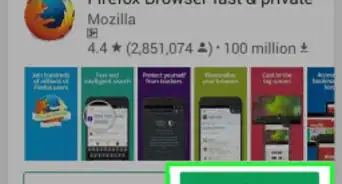
3Click Add to Firefox. It's a green button near the top of the page.
-
4Click Add when prompted. You'll see this in the upper-left side of the page.
-
5Click OK. Doing so will install Block Site in your Firefox browser.
-
6Click ☰. It's in the top-right corner of the Firefox window. A drop-down menu will appear.
-
7Click Add-ons. You'll find this option near the middle of the drop-down menu. Your Firefox add-ons' page will open.
-
8Find the Block Site icon. It resembles a chain link and a red "restricted" sign. You may have to scroll down to find this.
-
9Click Options. It's to the right of the Block Site icon.
- On Mac, click Preferences instead.
-
10Scroll down and click the "Add domains manually to block list" field. This text field is near the bottom of the page.
-
11Enter a website's address. Type in a website's address, making sure to include the "www." and ".com" (or ".org", or whatever the site's tag is) parts of the website's address.
- For example: to block Facebook, you would type in www.facebook.com here.
-
12Click +. It's to the right of the text field. Doing so immediately adds the website and all of its associated pages to the block list.
- Repeat this process for other sites that you want to block.
-
13Unblock sites on Block Site's list. If you decide that you want to unblock a previously blocked site, do the following:
- Click ☰
- Click Add-ons
- Find Block Site.
- Click Options or Preferences
- Scroll down to your list of blocked sites and find the site that you want to unblock.
- Click X to the right of the site.
-
14Try to access a recently unblocked site. Click the address bar at the top of the Firefox window to select its contents, then type in the address of the website that you just unblocked and press ↵ Enter. You should now be able to open the site.
- If you can't access the site, you may need to close and re-open Firefox.
Advertisement


Method 2
Method 2 of 3:Unblocking Sites with a Proxy
-
1Open Firefox. Its app icon resembles an orange fox on a blue background.
-
2Open the HideMe site. Go to https://hide.me/en/proxy in your browser.
-
3Enter a website's address. Type the address of a blocked website into the "Enter web address" text box that's in the middle of the page.
- You can also select a different country by clicking the "Proxy location" drop-down box and then clicking a new country in the resulting drop-down menu.
-
4Click Visit anonymously. It's a yellow button below the text box. Doing so will begin loading your website.
-
5Browse your site. Once the website loads, you should be able to use it like usual. Keep in mind, however, that your website's load times will likely be significantly slower than usual.Advertisement


Method 3
Method 3 of 3:Unblocking Sites with a VPN
-
1Open Firefox. Its app icon resembles an orange fox encircling a blue globe.
-
2Click ☰. It's in the top-right corner of the Firefox window. Clicking it prompts a drop-down menu.
-
3Click Options. You'll find this option near the middle of the drop-down menu. Doing so opens the Settings page.
- On a Mac or Linux computer, you'll instead click Preferences.
-
4Click the General tab. It's on the left side of the page.
-
5Scroll all the way down to the "Network Proxy" section. This section is at the very bottom of the "General" Settings page.
-
6Click Settings…. It's to the right of the "Network Proxy" heading.
-
7Check the "Manual proxy configuration" box. You'll find this near the top of the window.
-
8Enter your VPN's address. Type your VPN's network address into the "HTTP Proxy" text box.
- If you don't have a subscription to a VPN service, you'll need to sign up for one before you can do this.
-
9Select a port. Type your VPN's port into the "Port" text box.
-
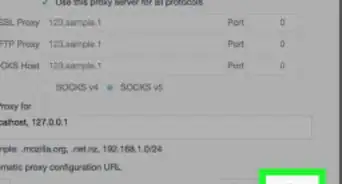
10Check the "Use this proxy server for all protocols" box. It's below the "HTTP Proxy" text box.
-
11Click OK. Firefox will now use your VPN's address to reroute its traffic, which should help unblock most sites (including system administrator-blocked sites and region-locked sites) in your Firefox browser.Advertisement


Community Q&A
-
QuestionHow do I unblock the website?
 Zildjian RecongcoCommunity AnswerTry to use a VPN. I always use browsec when I'm using a computer on our school to access YouTube and Facebook, it works and it's free to download, but it may affect your internet speed. If you have a high-speed internet that won't be a problem.
 -
QuestionHow do I allow ads on one specific website with Firefox?
 Community AnswerYou can allow/block ads on any site with just an extension/add-on such as AdBlock or AdBlock+. If you would like to know how to use AdBlock then here are the instructions: If you're on a site in which you want to allow ads, click on the AdBlock extension icon, then disable it on the site you're currently on. If you're on a site in which you want to block ads, the AdBlock extension blocks all ads from all pages.
Warnings
- There is no way to password-protect your Firefox extensions, so anyone with access to the Add-ons page can disable or remove the program.Thanks!
-Step-12.webp)
About This Article
1. Go to https://addons.mozilla.org/en-US/firefox/addon/block-website.
2. Click + Add to Firefox.
3. Click Add.
4. Click the menu and select Add-ons.
5. Click Extensions.
6. Click Options next to the extension.
7. Create a password.
8. Enter the site address and click Save.
9. Remove the site when you want to unblock it.
-Step-12.webp)