This article was written by Jack Lloyd. Jack Lloyd is a Technology Writer and Editor for wikiHow. He has over two years of experience writing and editing technology-related articles. He is technology enthusiast and an English teacher.
wikiHow marks an article as reader-approved once it receives enough positive feedback. In this case, 99% of readers who voted found the article helpful, earning it our reader-approved status.
This article has been viewed 1,711,374 times.
This wikiHow teaches you how to temporarily remove your Facebook profile from Facebook, though you'll be able to return to it simply by logging in. This process is different than permanently deleting your Facebook account.
Steps
Method 1
Method 1 of 2:Removing Your Profile Temporarily on Mobile
-
1Open Facebook. This is a dark-blue app with a white "f" on it. If you're logged into Facebook, opening it will take you to your News Feed.
- If you aren't logged into Facebook on your Android, enter your email address and password and tap Sign in to view the News Feed.
-
2Tap ☰. It's in either the bottom-right corner of the screen (iPhone) or the top-right corner of the screen (Android).Advertisement
-
3Scroll down and tap Settings. Skip this step for Android.
-
4Tap Account Settings. It's either at the top of a pop-up menu (iPhone) or toward the bottom of the ☰ menu (Android).
-
5Tap General. This tab is near the top of the screen.
-
6Tap Manage Account. It's the bottom option on this page.
-
7Tap Deactivate. This link is to the right of the "Account" heading.
-
8Enter your password, then tap Continue. Doing so will take you to the deactivation page.
-
9Tap a reason for deactivating your account. If you tap the Other option at the bottom of the section, you'll need to type in a reason for deactivating.
- If you want Facebook to reactivate your account automatically after a week or less, tap This is temporary. I'll be back. and then select a number of days to keep your account deactivated.
-
10Tap Close if prompted to take separate action. If your selected reason is deemed fixable by Facebook, you'll receive a pop-up messaging with an alternative (optional) action; tapping Close will remove this pop-up.
-
11Opt out of email notifications and/or Messenger if you like. To do so, simply tap the boxes next to Opt out of receiving future emails from Facebook and Keep me signed into Messenger respectively.
-
12Tap Deactivate. It's at the bottom of the page. Doing this will immediately deactivate your account.
- You may be asked to enter your password once more before the deactivation occurs.
- You can re-activate your account by logging back into Facebook the next time you open the app.
Advertisement


Method 2
Method 2 of 2:Removing Your Profile Temporarily on Mac and PC
-
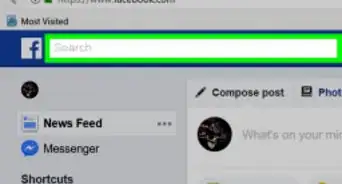
1Go to the Facebook website. It's located at https://www.facebook.com/. If you're already logged into Facebook, this will take you to your News Feed.
- If you aren't logged into Facebook, enter your email address (or phone number) into the top-right corner of the screen and click Log In to continue.
-
2Click ▼. You'll see this icon in the top-right side of the Facebook page, just right of the ? icon. Clicking it will invoke a drop-down menu.
-
3Click Settings. It's toward the bottom of the drop-down menu.
-
4Click the General tab. You'll see this option in the top-left side of the page.
-
5Click Manage Account. It's the last option on the page.
-
6Click the "Deactivate your account" link. This option is just above the Close button.
-
7Type in your Facebook password. You'll do this in the text field near the middle of the page.
-
8Click Continue. As long as your password is correct, doing so will take you to the deactivation page.
-
9Click a reason for deactivating. You'll do this in the "Reason for leaving" section near the bottom of the page.
- If you want Facebook to reactivate your account automatically after a week or less, click This is temporary. I'll be back. and then select a number of days to keep your account deactivated.
-
10Click Close if prompted to take separate action. Depending on your selected reason for leaving, Facebook may recommend that you log out or add friends instead of deactivating your account.
-
11Review the exit options. Before deactivating your account, you can check or uncheck the following options:
- Email opt out - Check this box to prevent Facebook from sending emails to you.
- Messenger - Deactivates Facebook Messenger as well. If you don't check this box, people will still be able to look you up and send you messages through Messenger.
- Delete applications - If you're a Facebook developer and you have created applications, they will be listed on this page. Checking this box removes them from your developer profile.
-
12Click Deactivate. It's the blue button at the bottom of the page.
- You may need to re-enter your password after this step.
-
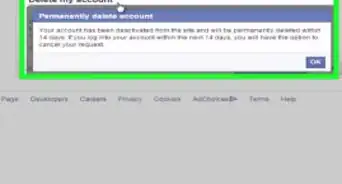
13Click Deactivate Now when prompted. Doing so will deactivate your Facebook account. If you want to re-activate it at any time, simply go to the Facebook login page, enter your email address and password, and click Log In.Advertisement


Warnings
- Deactivate only when you need to. If you do this too frequently, after a certain period of time, you won't be allowed to reactivate your account right away.Thanks!
- The only way to permanently remove sensitive information from Facebook's servers is by deleting your account.Thanks!










About This Article
To deactivate your Facebook account on a mobile phone, start by opening the app and navigating to Settings. Touch “Account settings,” then, “General,” followed by “Manage account.” Then, hit “Deactivate.” Once you’ve done that, type your password in to confirm your identity. If a message pops up asking why you’re deactivating your account, choose an answer, then press, “Log out.” When you’re presented with a final confirmation screen, hit “Deactivate,” to complete the process. For more tips, including how to deactivate your Facebook account on a web browser, read on!