This article was written by Jack Lloyd. Jack Lloyd is a Technology Writer and Editor for wikiHow. He has over two years of experience writing and editing technology-related articles. He is technology enthusiast and an English teacher.
wikiHow marks an article as reader-approved once it receives enough positive feedback. In this case, 97% of readers who voted found the article helpful, earning it our reader-approved status.
This article has been viewed 2,885,453 times.
This wikiHow teaches you how to change your displayed name on Facebook, both in the mobile app and on the desktop site. Exercise caution when doing this, since Facebook will only allow you to change your name a few times.
Steps
Method 1
Method 1 of 2:On Mobile
-
1Open Facebook. It's a dark-blue app with a white "f" on it. This will open your Facebook News Feed if you're already logged into Facebook on your phone or tablet.
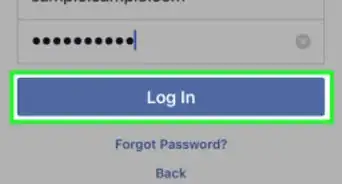
- If you aren't logged into Facebook, enter your email address (or phone number) and password to continue.
-
2Tap ☰. It's in either the bottom-right corner of the screen (iPhone) or the top-right corner of the screen (Android).Advertisement
-
3Scroll down and tap Settings. It's near the bottom of the page.
- Skip this step on Android.
-
4Tap Account Settings. This option will take you to your Account Settings page.
-
5Tap General. It's the top option on this page.
-
6Tap your name. You should see this near the top of the screen.
-
7Edit your name. Tap the First Name, Middle Name, or Last Name field, type in your preferred name, and repeat for the other fields as necessary.
-
8Tap Review Change. It's a blue button at the bottom of the screen.
-
9Select a display option. Facebook will display variations of your name at the top of the screen; tap an option to select it as your name's appearance.
-
10Enter your password, then tap Save Changes. You'll enter your password in the text field above the Save Changes button. Doing so will change your Facebook name.Advertisement


Method 2
Method 2 of 2:On Desktop
-
1Go to Facebook's website. Go to https://www.facebook.com in your preferred browser. This will load your News Feed if you're already logged into Facebook.
- If you aren't already logged into Facebook, enter your email address (or phone number) and password before continuing.
-
2
-
3Click Settings. It's near the bottom of the drop-down menu.
-
4Click the General tab. This option is in the upper-left side of the page.
-
5Click your name. It's at the top of the General page.
-
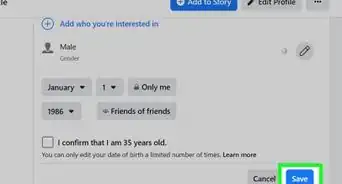
6Edit your name. Replace the name(s) in the First, Middle, and/or Last fields with your preferred name(s).
-
7Click Review Change. This blue button is below the name section. Clicking it brings up a pop-up menu.
-
8Select a display option. Facebook will display variations of your name at the top of the page; click an option to select it as your name's appearance.
-
9Enter your password, then click Save Changes. You'll enter your password in the text field above the Save Changes button. Doing so will change your Facebook name.Advertisement


Community Q&A
-
QuestionWhat can I do if an unknown person changed my name on Facebook?
 Community AnswerIf that happened, your account is probably hacked by someone who also now has access to your messages, images and other personal info. That 'unknown' has your password. You should change your change your password before that 'unknown' changes it and causes you more trouble.
 -
QuestionHow do I change my Facebook name on the app?
 Community AnswerTap More. Scroll down and tap Settings > General > Name. Enter your name and tap Review Change. Enter your password and tap Save Changes.
 -
QuestionI want to add my husband's first name to mine. How do I do that?
 Community AnswerGo into account settings, and you can change any details you have online.
 -
QuestionHow do I get back into my Facebook account when I already changed my email?Community AnswerYou would need to know the answer to your security questions. Another option is if you have your phone number on your account you could access it on your phone with your phone number. Also you could try just using your old email (the one you set up the account with) and your current password, which may still work.
-
QuestionHow can I remove my former name on my Facebook account?Community AnswerYou can go into your settings and go to your details. From there you can change or remove any details you have on your account.
-
QuestionWhat do I do if I made a mistake with my name on Facebook?Community AnswerYou have to wait 60 days until you can change it again.
-
QuestionCan I open a new Facebook account with a different name and email address?Community AnswerYes, you can. However, you have to start from the beginning, any groups you're in or any friends you have won't transfer.
Warnings
- Facebook will only let you change your name a few times, and joke names typically aren't accepted.Thanks!



About This Article
1. Open Facebook.
2. Tap the ☰ menu.
3. Tap Settings.
4. Tap Account Settings.
5. Tap General.
6. Tap your name.
7. Edit your name.
8. Tap Review Change.
9. Select a display option.
10. Tap Save Changes.