X
wikiHow is a “wiki,” similar to Wikipedia, which means that many of our articles are co-written by multiple authors. To create this article, 34 people, some anonymous, worked to edit and improve it over time.
This article has been viewed 316,865 times.
Learn more...
IIS stands for Internet Information Services. It is a web server which provides access to web pages published on it. It does a similar role to Apache, except it is more user friendly. Getting it set up for the first time is actually easier than most people think.
Steps
-
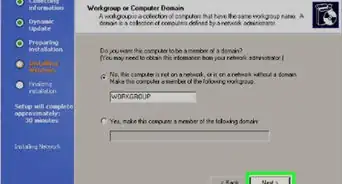
1Install IIS 5.1. This is a Windows Add-on available in Windows XP Pro or Windows XP Media Center editions of Windows XP.
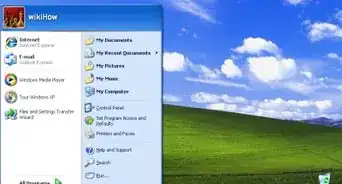
- Open Control Panel from the Start Menu.
- Click on Add or Remove Programs
- Click on Add/Remove Windows Components
- Select Internet Information Services from the Windows Component Wizard
- Select Next. The Wizard may prompt you for your XP Installation Disc.
- IIS 5.1 will now be installed
-
2Once it has completely installed you will have to open it (this may be tricky because it doesn't include any shortcuts on the desktop or in the start menu).
- First go to the Control Panel again and click "Performance and Maintenance" and then navigate to "Administrative Tools". (For Service Pack 3, click directly on "Administrative Tools")
- Now you should see "Internet Information Services"; open the program up (You may create a shortcut on the desktop so it is easier to find).
-
3If it opens then congratulations, you have successfully installed it. Now to set it up properly read on...
-
4In the left panel select "Websites".
-
5Here you will see if it is running or not, the local IP Address it is configured on, and the current port it is using (Port 80 is default, however you may need to change this because most ISPs [Internet Service Provider] block that port).
-
6Now right click on "Default Web site" and click properties, then go to the "Web site" tab. Change the IP Address to what your local IP Address is if it is not already set (to find out what your local address is click "start", then "run", then type in "cmd", then type in "ipconfig". Now look at the address beside "IP Address" and that is what it should be in IIS).
-
7Now decide what port you want to use (anything above 1024 should be fine). You can leave it at port 80 but only if your ISP doesn't block it. If you do decide to change the port then note than whenever you navigate to your website then your syntax must be "domain.com:portnumber".
-
8After you have decided on the port you need to open the port in your router. To do this type in you gateway in a browser and follow the steps there.
-
9Next go to the "Home Directory" tab, and select a local path. You should use "driveletterofWindows:\Inetpub\wwwroot". This folder was automatically created upon installation.
-
10Now go to the "Documents" tab. Here you can set a default document to redirect to if no document is typed into the URL. To add a new document to the list click "Add" and then type in the name (you do not need the path but the file must be in the home directory that you previously chose).
-
11Next close the properties window and right click on "Default Web Site" again. This time rollover "New" and then click "Virtual Directory" (you don't have to do this but it is a good practice). Select a logical name for your virtual directory such as "root" or something similar as to avoid confusion.
-
12Now expand "Default Web Site" and you should see the name of your virtual directory. Expand the directory and you should see all of the files in there that are in your "Home Directory". Relax, you are almost done.
-
13
-
14Now test to see if your site works.
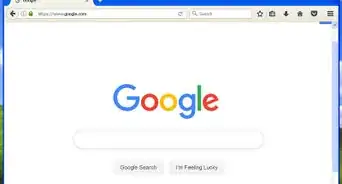
- Open up your favorite browser and type into the Location Bar: http:// localIPaddress:port/virtualdirectory/ or type in : http:// computername:port/virtualdirectory/ (if you did not change the port from port 80 then type in: http:// computername/virtualdirectory/)
-
15To access your site from another location that is not on your network then type: http:// externalIPaddress:port/virtualdirectory/ (once again if you did not change the port from port 80 then type: http:// externalIPaddress/virtualdirectory/)
-
16To find out your external IP Address then go to https://www.whatismyip.com/
-
17If it works then good job. For reasons why it didn't work consult the Tips section.


Warnings
- Don't upload illegal or copyrighted files onto your web server.Thanks!
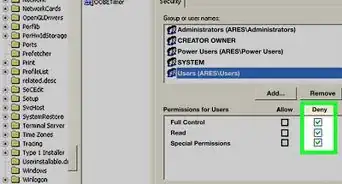
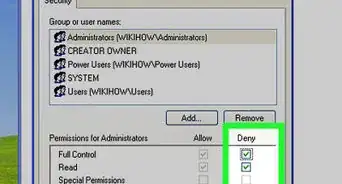
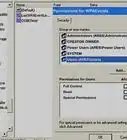
- Don't give full permissions because you don't want other people viewing your directories or infecting you with viruses.Thanks!
Things You'll Need
- Windows XP Pro or Media Center
- IIS 5.1
- Internet connection (Preferably high speed)
- Basic knowledge of HTML