X
wikiHow is a “wiki,” similar to Wikipedia, which means that many of our articles are co-written by multiple authors. To create this article, volunteer authors worked to edit and improve it over time.
This article has been viewed 15,934 times.
Learn more...
Firefox is a web browser used by people all over the world. One of the things that makes Firefox so popular is its wide range of settings. These settings allow users to customize their web browser experience down to the smallest details. Among the most important of these settings are the Security options. They can be changed in a matter of minutes, but the reward is huge and long-lasting: a safer account and a whole lot of peace of mind.
Steps
Part 1
Part 1 of 2:Accessing the Security Settings Page
Part 1
-
1Launch Firefox. To open the Firefox browser on your computer, click on its icon, which should be on your desktop, Start menu, or taskbar.
-
2Click on the Settings button. Look for the icon with three short horizontal lines arranged one on top of the other found at the top-right corner of the browser. Click on the icon to display a drop-down menu..Advertisement
-
3Click on the Security tab under Options. On that drop-down menu will be the submenu “Options.” Click on it, and a window will pop up where you will see that one of the tabs is marked “Security” with a padlock over it. Click on it to display the areas you can up the security on your Firefox.Advertisement


Part 2
Part 2 of 2:Managing Your Security Settings
Part 2
-
1Be warned when sites install add-ons. Once you're in the Security settings window, the first thing you can tweak is whether you want Firefox to warn you when sites try to install add-ons on your browser. Click on the check box if you want to activate the feature.
-
2Block reported attack sites. The next security option allows Firefox to block reported attack sites that may harm your computer. Click on the check box if you want to activate the feature.
-
3Block reported forgery sites. Next on the list is whether to allow Firefox to block forgery sites. These are sites that pretend to be another website when in fact the intent is to harm your computer or steal your information (or worse, your identity). Click on the check box if you want to activate the feature.
- It's highly recommended that you do.
-
4Decide if you want passwords to be remembered for sites. The second part under Security settings involves password security settings. The first of which allows you to indicate whether you want Firefox to remember passwords for all the sites you log into.
- Only check this box if you are using a private computer, and even then do so under extreme caution.
-
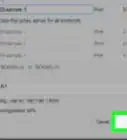
5Decide if you want to use a master password. This last option under Security lets you create a master password so you can access saved usernames and passwords on Firefox that you use to access online services. Click on the check box if you want to activate the feature, and then type your master password into the “Change master password” field.
-
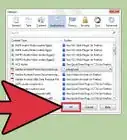
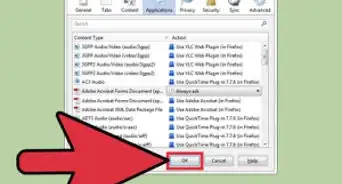
6Save your new security settings. Click on the “OK” button at the bottom of the pop-up window to save your changes and successfully update your Firefox security settings.Advertisement


Community Q&A
-
QuestionHow do I overcome "connection not secure"?
 Community AnswerYou can't. If the connection is not secure, it's not secure. Proceed using that website with caution.
References
About This Article
Advertisement