X
wikiHow is a “wiki,” similar to Wikipedia, which means that many of our articles are co-written by multiple authors. To create this article, 12 people, some anonymous, worked to edit and improve it over time.
This article has been viewed 138,862 times.
Learn more...
So have you been wanting to use your Mobile Broadband USB stick or Laptop card connection for a router to have wireless in the home, but have no clue how to do it? connection. You have seen these $150-$200 routers coming out that you can put your USB or Laptop Broadband card in and use your mobile broadband connection for the wireless router. Well Here's a solution so you don't have to Waste $200.
Steps
-
1Make sure you have an active mobile broadband connection from a cellular provider it could be from a USB or Laptop card device.
-
2Log onto the administrator or host account of your computer.Advertisement
-
3Go to Start, then click on Control Panel.
-
4Find Network and internet Connections and click on it.
-
5Select Network Connections.
-
6Select your type of internet connection, then click Properties.
-
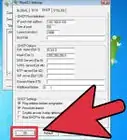
7Click on the Advanced tab.
-
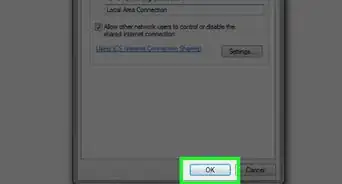
8Look under Internet Connection Sharing, there should be a check-off box that says Allow other network users to connect through this computer's Internet connection. Check off that box.
-
9If you use dial-up for your internet connection, check off Establish a dial-up connection whenever a computer on my network attempts to access the Internet. Then click OK.
-
10Click "Yes" when you receive this message;
- When Internet Connection Sharing is enabled, your LAN adapter will be set to use IP address 192.168.0.1. Your computer may lose connectivity with other computers on your network. If these other computers have static IP addresses, it is a good idea to set them to obtain their IP addresses automatically. Are you sure you want to enable Internet Connection Sharing?
-
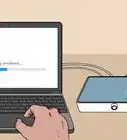
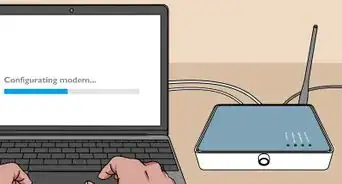
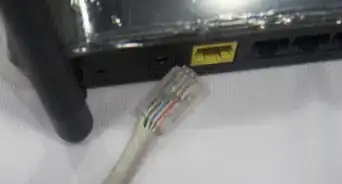
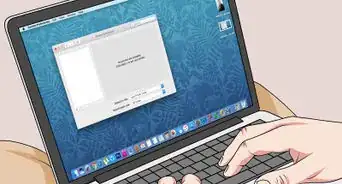
11Run a Cat 5 cable from your desktop or laptop with active Mobile broadband ICS connection from the computers LAN port to the Routers Internet In Port. And Voila !Advertisement


Warnings
- Be careful when messing with the setting, you could do something wrong and nothing will work!Thanks!
Advertisement
Things You'll Need
- A wireless Broadband Card or USB stick from a cellular provider
- Desktop or Laptop
- Wireless or Regular Router
- A little know how
-Step-6-Version-5.webp)
-Connection-Step-12-Version-5.webp)

References
About This Article
Advertisement