This article was co-authored by wikiHow Staff. Our trained team of editors and researchers validate articles for accuracy and comprehensiveness. wikiHow's Content Management Team carefully monitors the work from our editorial staff to ensure that each article is backed by trusted research and meets our high quality standards.
The wikiHow Tech Team also followed the article's instructions and verified that they work.
This article has been viewed 2,623 times.
Learn more...
This wikiHow teaches you how to start a live video broadcast on Facebook, using Facebook's "Live" feature. The Live feature allows you to stream live video with your computer's webcam or mobile device's camera from anywhere in the world. You can talk, chat, and interact with your friends in your live stream in real time.
Steps
Part 1
Part 1 of 2:Starting a Live Broadcast
-
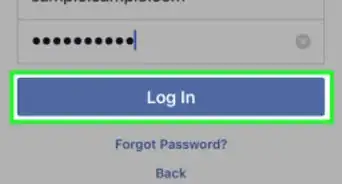
1Open Facebook in your internet browser. Type https://www.facebook.com into the address bar, and press ↵ Enter or ⏎ Return on your keyboard.
- Alternatively, you can use the mobile Facebook app on iPhone, iPad or Android.
-
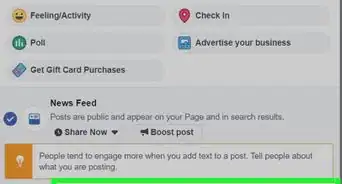
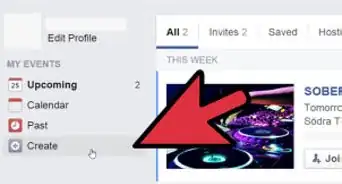
2Click the three-dot icon below the "Create Post" field. This field reads "What's on your mind?" at the top of your News Feed. The three-dot icon is located in the lower-right corner of the box, and it will expand your options.
- On mobile, just tap the What's on your mind? field to extend your options.
- On iPhone and iPad, you can also tap the Live button below the "What's on your mind?" field, and directly open the Live camera.
Advertisement -
3Click the Live Video button. This option is listed next to a white-on-red "LIVE" icon. This will open the Facebook Live screen.
- On some mobile versions, this button may be named Go Live.
-
4Click Allow or OK in the pop-up. When you're asked to allow permission to your camera and microphone, click the Allow button in the pop-up to proceed.
- If you don't see this pop-up on desktop, click the padlock icon next to the https://www.facebook.com URL in the upper-left corner of your browser, and click Site settings.
- On the Site Settings page, click the drop-down next to "Camera," and select Allow. Then, click the "Microphone" drop-down, and select Allow.
-
5Make sure the Camera option is selected at the top. This will allow you to use your webcam and your microphone to stream a live broadcast.
- On mobile, the Live feature directly uses your phone or tablet's camera, so you can skip the camera and microphone setup steps.
- On desktop, you can also click the Connect tab at the top, and use a third-party streaming software like OBS Studio.
-
6Select your camera on the right. Click the drop-down next to the camera icon on the right-hand side, and select the webcam you want to use.
- You can also click Share Screen here to stream your desktop. You will be redirected to install a browser extension for this feature.
- As an alternative, you can use a third-party software to live stream your desktop.
-
7
-
8Enter a title for your live stream under "Title." (optional) Click the text field under "Title" on the bottom-right, and type your broadcast's title here.
- This option is only available on the desktop version.
-
9Click the Share on Your Timeline drop-down on the top-right. This menu will allow you to post your live stream on your own Timeline, in a group, on an event page, or on a business/fan page you manage.
- On mobile, tap the Post, Story button at the top of your screen. You can select your audience and change all your privacy settings here.
- If you select one of the other options, you can select the group, event or page you want below the drop-down here.
-
10Write a description for your stream. Click the "Say something about this live video" box next to your profile picture, and write anything you want to share about your broadcast here.
- On mobile, this field reads "Tap to add a description."
- You can use the icon on the bottom-left of the text box to tag people, use action/emotion tags, or add a location check-in.
-
11Click the Privacy drop-down on the bottom-right of the text box. This option is usually set to Public by default. You can change it to Friends, Only me, or a different privacy preference here.
-
12Click the Interactive tab on the top-right (optional). This tab will allow you to create public polls or trivia questions to go with your broadcast.
- Click the blue + Add Question link here to add a new poll question.
- This option is not available in the mobile app.
- If you're using the mobile Facebook app, you can tap the magic wand icon on the bottom-left corner, and select filters for your stream.
-
13Click the blue Go Live or Start Live Video button. You can find this button on the bottom-right corner on desktop, and at the bottom on mobile.
- When you're ready to go, click this button to start your live stream.
- Your screen will count down from 3, and start your broadcast.
Advertisement


Part 2
Part 2 of 2:Chatting Live in Your Stream
-
1Post a comment to the stream chat. Type your message in the "Write a comment" field on the bottom-right, and press ↵ Enter or ⏎ Return on your keyboard.
- On mobile, tap the white chat bubble icon on the bottom toolbar to open the message box.
- Your message will be posted to the stream chat, and will be available to all the viewers.
- You can click the Pin Comment button below your message to pin it at the top of the stream chat.
- On mobile, long-press on your comment to pin it.
-
2Interact with your viewer's comments in the chat. You can use the Like and Reply buttons below any comment in the chat to interact with your viewer's comments.
- On mobile, you can tap a comment to see the Like and Reply buttons below it.
-
3Click the Invite Friends button on the bottom-left. This will open your friend list on the right-hand side, and allow you to send invitations to your friends to your broadcast.
- On mobile, click the "+" button on the bottom-left, and select Bring a Friend here. You can also use the other gaming options on this menu.
- Just click Invite next to a friend's name to send them an invite.
- Click Done on the bottom-right to close the friend list, and go back to the stream chat.
-
4Click the End Live Video or Finish button on the bottom-right. When you're ready to leave, click this button in the lower-right corner to end your broadcast.
-
5Click End in the confirmation pop-up. If you're prompted, this will confirm your action, and end your broadcast.
-
6Click Done or Post. After ending your broadcast, click this button to post a recording of your live stream to your Timeline.
- On mobile, you can tap the icon on the top-right to download a copy of the video to your Camera Roll.
- Alternatively, click Delete Video or Delete here to permanently delete the stream video. You'll be prompted to Confirm in a second pop-up.
Advertisement


About This Article

1. Open Facebook.
2. Click the What's on your mind? field or the three-dot icon.
3. Select Live, Go Live, or Live Video.
4. Set up your stream's privacy settings.
5. Add a description for your broadcast.
6. Select Go Live or Start Live Video.
7. Select End Live Video or Finish when you're done.
8. Select Done, Post or Delete at the end.