X
This article was written by Nicole Levine, MFA. Nicole Levine is a Technology Writer and Editor for wikiHow. She has more than 20 years of experience creating technical documentation and leading support teams at major web hosting and software companies. Nicole also holds an MFA in Creative Writing from Portland State University and teaches composition, fiction-writing, and zine-making at various institutions.
The wikiHow Tech Team also followed the article's instructions and verified that they work.
This article has been viewed 3,707 times.
This wikiHow teaches you how to get started with Apple Music on your iPhone or iPad.
Steps
Method 1
Method 1 of 6:Subscribing to Apple Music
Method 1
-
1Turn on Apple Music in your iPhone or iPad’s Settings. If you haven’t yet done so, see Turn on Apple Music on an iPhone to ensure Apple Music is available.
-
2Open Apple Music. It’s the white icon with a pink, purple, and blue music note inside. The label below the icon is “Music” and you’ll usually find it on the home screen.Advertisement
-
3Tap For You. It’s at the bottom of the screen.
-
4Tap Choose plan.
-
5Select a plan. Apple Music offers a free trial membership when you first subscribe. After that, you’ll need to pay to use the service. Tap the plan that best suits your needs:[1]
- If you’re the only one who will be using this account, select Individual.
- To share your account with up to 6 other listeners, select Family.
- If you’re a university student (and a member of UniDays), select Student to get a discount on your membership.
-
6Enter your password or use Touch ID to confirm. Depending on how your Apple account is set up, you may have to enter additional information to verify your payment.
- You can change or cancel your subscription at any time.[2]
-
7Select your favorite music genres and tap Next.
- Tap the genres you like only once, and the genres you love twice.
- If you really don’t like a genre and never want to hear it in your radio stations, tap and hold its name.
-
8Select your favorite artists and tap Done. This gives Apple Music a better idea of what you like so it can make recommendations.Advertisement


Method 2
Method 2
-
1Open Music on your iPhone or iPad. It’s the white icon with a pink, purple, and blue music note inside. You’ll usually find it on the home screen.
-
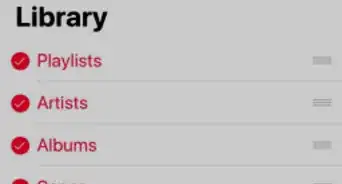
2Tap Library. It’s at the bottom of the screen. This is where you’ll find music you’ve saved to your library, including songs you’ve downloaded from other locations.
-
3Tap Playlists to view your playlists. If you’ve created any playlists they’ll appear here.
- To listen to a playlist, tap its name, then tap the Play button.
- To create a new playlist, tap + New Playlist… and enter a name and description. To add music, tap + Add Music, select the songs you want to add, and then tap Done.
-
4Tap Artists to view music by artist. All of the artists you’ve added to your library appear on this screen.
- Tap an artist to view their albums, then tap an album to view its songs.
- To play a song, tap its name.
-
5Tap Albums to view music by album. This shows a list of all of your music organized by album title.
- You can play all albums at once by tapping Play at the top of the screen.
- To shuffle music in your albums, tap Shuffle.
-
6Tap Songs to view all songs in your library. The songs are organized alphabetically by title.
- Tap a song to start playing it.
- To shuffle all songs in your library, tap Shuffle.
-
7View all of your downloaded music. If you want to filter out the music you’ve saved from Apple Music (or the iTunes purchases you haven’t downloaded), tap Downloaded Music, then explore the categories (Playlists, Artists, Albums) just as you did in the main library.
-
8View recently added music. Scroll down on the Library screen until you see the “Recently Added” section. The most recent songs and albums you’ve added to the library appear here.
- To edit the parameters of the recent list (including the amount of time something should be considered “recent”), tap Edit at the top-right corner of the screen.
Advertisement


Method 3
Method 3 of 6:Browsing Recommendations
Method 3
-
1Open Music on your iPhone or iPad. It’s the white icon with a pink, purple, and blue music note inside. You’ll usually find it on the home screen.
-
2Tap For You. It’s at the bottom of the screen. This is where you’ll find recommended songs, albums, and playlists based on your preferences when you first set up Apple Music.
- The more you use Apple Music, the better your recommendations will be.
-
3Add friends to discover new music. Once you add friends, the songs they listen to will start showing up under the “Friends are listening to” header on this screen. Here’s how to add friends:
- Scroll down and tap Get Started.
- Tap Get Started to confirm.
- Confirm your name and username and tap Next. This helps friends find you on Apple Music.
- Choose who can add you and tap Next. By default, anyone can add you on Apple Music. To manually approve those who add you, select People You Approve.
- Select playlists to share and tap Next (or tap Hide All to keep your playlists private).
- Tap FOLLOW next to anyone you want to follow.
- To find even more friends, tap Find More Friends, then follow the on-screen instructions to connect your favorite social media accounts to Apple Music.
- Tap Next.
- Toggle on the notifications you want to receive and tap Done.
-
4View recently played music. Can’t remember which album or song you were listening to but want to hear it again? Scroll down to the “Recently Played” section of the “For You” screen, then tap See All.Advertisement


Method 4
Method 4 of 6:Finding Music to Stream
Method 4
-
1Open Music on your iPhone or iPad. It’s the white icon with a pink, purple, and blue music note inside. You’ll usually find it on the home screen.
-
2Tap Browse. It’s at the bottom of the screen. This displays a list of categories you can use to find the songs you want to hear.
-
3Tap a category to view its contents. You may want to browse by Genre, see New Music, or check out the hits in Top Charts. You can also find curated playlists made by Apple by tapping Playlists.
-
4Tap Search to search for what you want to hear. It’s the magnifying glass icon at the bottom-right corner of the screen. Type a song, artist, album, or any other keyword into the search bar, then tap the search key to view the results.
- Tap an artist to see their albums and songs.
- Tap a song to start listening.
Advertisement


Method 5
Method 5 of 6:Listening to Radio Stations
Method 5
-
1Open Music on your iPhone or iPad. It’s the white icon with a pink, purple, and blue music note inside. You’ll usually find it on the home screen.
-
2Tap Radio. It’s at the bottom of the screen. Apple Music has many radio stations you can listen to.
-
3Tap Radio Stations. A list of genres will appear.
-
4Tap a genre. A list of radio stations for that genre will appear.
-
5Tap a station. Scroll down through the stations to see all of your options, then tap one to start listening.Advertisement


Method 6
Method 6 of 6:Listening Offline
Method 6
-
1Open Music on your iPhone or iPad. It’s the white icon with a pink, purple, and blue music note inside. You’ll usually find it on the home screen.
- To listen to music offline, you’ll need to download it while you’re online. Make sure you’re connected to Wi-Fi before you try to download music.
-
2Find the album or playlist you want to listen to offline. You can download any playlist you have access to, including your friends’ and those made by Apple.
-
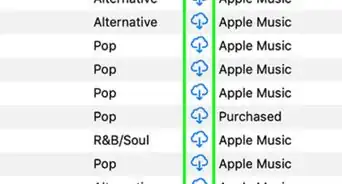
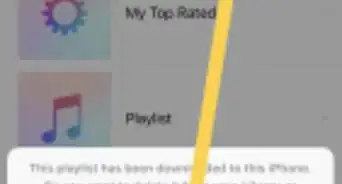
3Tap the Download icon next to a playlist or album. This downloads the playlist or album to your library and makes it available to for listening even when you’re not connected to the internet.
- If you want to download one song from the album or playlist, open the album or playlist, then tap the + or cloud icon next to the song.
Advertisement



About This Article

Nicole Levine, MFA
Tech Specialist
This article was written by Nicole Levine, MFA. Nicole Levine is a Technology Writer and Editor for wikiHow. She has more than 20 years of experience creating technical documentation and leading support teams at major web hosting and software companies. Nicole also holds an MFA in Creative Writing from Portland State University and teaches composition, fiction-writing, and zine-making at various institutions. This article has been viewed 3,707 times.
Co-authors: 3
Updated: June 21, 2019
Views: 3,707
Categories: Apple Music
Advertisement