X
wikiHow is a “wiki,” similar to Wikipedia, which means that many of our articles are co-written by multiple authors. To create this article, volunteer authors worked to edit and improve it over time.
This article has been viewed 11,104 times.
Learn more...
This wikiHow will show you how to delete a playlist in Apple Music on your iPhone or iPad.
Steps
-
1Open the Apple Music app. The icon looks like a pink and purple music note on a white background.
-
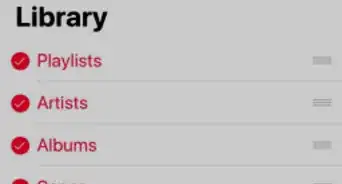
2Click Playlists to open your playlist list.
- If you don't see the "Playlists" link, you may be on the wrong tab. Hit Library along the bottom of the screen to go to your library.
Advertisement -
3Long press the playlist you want to delete. On iPhones with 3D Touch, you'll need to click the screen down as you press.
-
4Select Remove or Delete from Library.
- Which you see in the menu will depend on whether the playlist is downloaded to your device or not.
-
5Confirm that you want to delete it. Your pop-up may read Delete Playlist or Delete from Library.
- If the playlist was stored on other devices but not downloaded to your iPhone or iPad yet, you'll see the "Delete Playlist" option. This will remove the playlist from your other connected devices.
- If the playlist was downloaded to your iPhone or iPad, you'll see "Delete from Library". Selecting this will keep the individual downloaded songs on your device but remove the playlist from all of your connected devices.
Advertisement



About This Article
Advertisement