This article was co-authored by wikiHow staff writer, Jack Lloyd. Jack Lloyd is a Technology Writer and Editor for wikiHow. He has over two years of experience writing and editing technology-related articles. He is technology enthusiast and an English teacher.
The wikiHow Tech Team also followed the article's instructions and verified that they work.
This article has been viewed 294,815 times.
Learn more...
This wikiHow teaches you how to update your Ubuntu Linux kernel, which is the core software that runs the rest of your Linux distribution. The easiest way to do this is by installing and running a package manager called "Ukuu", but you can also download and install manually the kernel files from the Ubuntu kernel web archive.
Steps
Method 1
Method 1 of 2:Using Ukuu
-
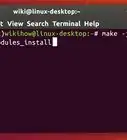
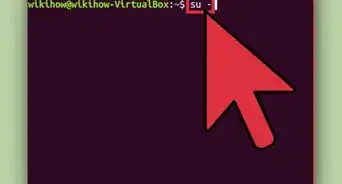
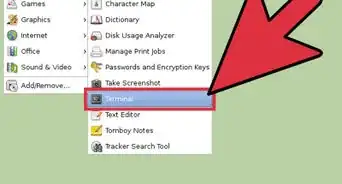
1Open Terminal. Click the black Terminal icon on the left side of the screen. This will open the Terminal window.
- You can also press Ctrl+Alt+T to open Terminal.
-
2Add the Ukuu repository. Type in sudo add-apt-repository ppa:teejee2008/ppa and press ↵ Enter.
- Ukuu is a free program that will find and install the correct kernel for you.
-
3Enter your password when prompted. Type in the password you use to log into your computer, then press ↵ Enter.
- You won't see any characters or stars appear while typing.
-
4Press ↵ Enter when prompted. Doing so adds the repository; this may take a few minutes, so don't type anything until the repository finishes adding.
-
5Update the repository. Type in sudo apt-get update and press ↵ Enter. The repository will briefly update, after which point you can continue.
-
6Install Ukuu. Type in sudo apt-get install ukuu and press ↵ Enter, then type in y when prompted and press ↵ Enter.
-
7Verify that Ukuu installed. Type in ukuu, then press ↵ Enter. If you see a list of commands appear in Terminal, Ukuu successfully installed.
-
8Install the latest available kernel. Type in sudo ukuu --install-latest and press ↵ Enter, then allow Ukuu to run.
- Skip this step if you want to use Ukuu's interface to install a kernel.
-
9Install a kernel from the Ukuu program. If you would rather browse the available kernels using the Ukuu program, do the following:
- Click the "Applications" ⋮⋮⋮ icon in the bottom-left corner of the screen.
- Scroll down and click Ukuu.
- Select the Kernel you want to install, then click Install.
- Enter your password when prompted, then click Authenticate.
-
10
-
11Check your current kernel. You can double-check that Ubuntu's installation of your kernel was successful by opening Terminal and entering uname -sr. You should see the version number of the most recent (or, if different, your selected) kernel.


Method 2
Method 2 of 2:Using Kernel Files
-
1Open the Ubuntu kernel list. Go to http://kernel.ubuntu.com/~kernel-ppa/mainline/ in your computer's web browser.
-
2Select a kernel version. Scroll down until you find the link to the kernel version number you want to install, then click it to open its page.
- As of August 2018, the newest kernel is version 4.18. You can find it at the very bottom of the page under the v4.18 link.
-
3Find the kernel for your computer. Usually the top list of kernel (.deb) files will work for your computer, but if you see a heading that contains files which seem better suited to your computer than the top heading, you may want to use its files instead.
- Each heading on the page should say "Build for [architecture] succeeded" where "architecture" refers to your computer's system architecture (32-bit or 64-bit).
-
4Download the kernel files. Click each kernel file's link to do so . You'll need the "headers" file marked for all versions, the "image" file with "generic" in its name (avoid the "low latency" versions of these files), and the "modules" file with "generic" in its name. For example, to download the necessary files for kernel 4.18, you would click the following links:
- linux-headers-4.18.0-041800_4.18.0-041800.201808122131_all.deb
- linux-image-unsigned-4.18.0-041800-generic_4.18.0-041800.201808122131_amd64.deb
- linux-modules-4.18.0-041800-generic_4.18.0-041800.201808122131_amd64.deb
-
5Open Terminal. Click the black Terminal icon on the left side of the screen. This will open the Terminal window.
- You can also press Ctrl+Alt+T to open Terminal.
-
6Switch to your default "Downloads" directory. Type in cd Downloads and press ↵ Enter. If your default "Downloads" location for your web browser differs from the "Downloads" folder, replace "Downloads" with the path to the folder into which your kernel files downloaded.
- If you have any .deb files not related to the kernel installation in this directory, either move them or delete them before proceeding.
-
7Prompt Ubuntu to open the .deb files. Type in sudo dpkg -i *.deb and press ↵ Enter.
-
8Enter your password when asked. Type in the password you use to log into your computer, then press ↵ Enter.
- You won't see any characters or stars appear while typing.
-
9Wait for Ubuntu to finish installing the kernel. This may take a few minutes. Once you see the "Downloads" directory tag reappear next to your name at the bottom of the window, you can proceed.
-
10
-
11Check your current kernel. You can double-check that Ubuntu's installation of your kernel was successful by opening Terminal and entering uname -sr. If this command shows you a number that matches the version number of the kernel you downloaded, your kernel has successfully updated.
- If you don't see the correct kernel number here, you may have downloaded the wrong files for your computer. Delete the .deb files from your "Downloads" folder, then go back to the list of kernel files and try downloading them from under a different heading.


Community Q&A
-
QuestionAfter installing the new kernel (followed all steps including restart), uname -r still show the old version. Why is that?
 Community AnswerDid you update your GRUB as well? You may have logged to an old grub entry. If this is not the case, try to update it again using Ubuntu mainline kernel updater.
Warnings
- In some cases, installing a more advanced kernel than your operating system uses can cause your operating system to stop working correctly.Thanks!

About This Article