X
This article was co-authored by wikiHow Staff. Our trained team of editors and researchers validate articles for accuracy and comprehensiveness. wikiHow's Content Management Team carefully monitors the work from our editorial staff to ensure that each article is backed by trusted research and meets our high quality standards.
This article has been viewed 22,009 times.
Learn more...
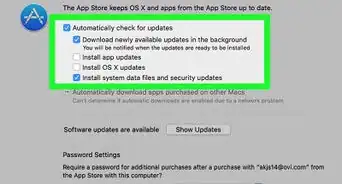
To update Safari on a Mac, click on the App Store → Click on Updates → Find the system update → Click on the Update option next to the system update.
Steps
Method 1
Method 1 of 2:Desktop
Method 1
-
1Open Spotlight. It is the magnifying glass icon in the upper-right corner of your screen.
-
2Type in "App Store". The App Store has a blue icon with a pencil and paint brush in the shape of the letter "A".
-
3Press Return.
-
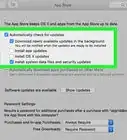
4Click on Updates. It is at the top of the App Store window.
-
5Find the system update. It will likely include the phrase "OS X Update".
- Updates for Safari won't appear, because they are a part of system updates.
-
6Click on Update. It is to the right of the system update.
-
7Click on Update All (optional). It is at the top-right corner of the App Store window.
- This will update the rest of your software programs that have an update available.


Method 2
Method 2 of 2:iOS
Method 2
-
1Place your device on a charger. This will prevent your device from dying during the update.
-
2Open the Settings app. It has a gray gear icon and is located on your device's home screen.
-
3Tap Wifi.
-
4Tap On/Off switch to turn on Wifi. The switch is to the right of Wifi.
- If the switch is green, the Wifi is on.
-
5Tap the name of the Wi-Fi network that you want to join. After you join the network, you'll see a check mark next to the network.
-
6Tap the back button. It is in the upper-left corner of the screen.
-
7Tap General. It has a gray gear icon next to it.
-
8Tap Software Update. If there is a notification circle with a number in it next to Software Update, a software update is available.
- If you do not see a notification circle, you cannot update your iOS or Safari.
-
9Tap Download and Install.
-
10Tap Agree.
-
11Tap Continue. After the download is complete, your device will restart.


Community Q&A
-
QuestionHow do I transfer apps and content from an old iPad to a new one?
 Community AnswerWhen you set up your new iPad, you'll have the option to set it up as a new iPad or an iPad from a backup. If you have an iCloud backup of your old iPad, you could set up your new iPad with it using your Apple ID and password.




About This Article

wikiHow Staff
wikiHow Staff Writer
This article was co-authored by wikiHow Staff. Our trained team of editors and researchers validate articles for accuracy and comprehensiveness. wikiHow's Content Management Team carefully monitors the work from our editorial staff to ensure that each article is backed by trusted research and meets our high quality standards. This article has been viewed 22,009 times.
How helpful is this?
Co-authors: 4
Updated: September 3, 2020
Views: 22,009
Categories: Safari Browser
Article SummaryX
1. Open the App Store on your Mac.
2. Click Updates.
3. Find the system update.
4. Click Update.
Did this summary help you?