X
This article was written by Jack Lloyd. Jack Lloyd is a Technology Writer and Editor for wikiHow. He has over two years of experience writing and editing technology-related articles. He is technology enthusiast and an English teacher.
This article has been viewed 139,083 times.
If you are changing your default web browser to Safari, you can save your Chrome, Firefox, or Internet Explorer bookmarks/favorites to an HTML file, then use Safari's "Import From File" option to view those bookmarks in Safari. You can also import mobile bookmarks from your computer's Safari bookmarks to an iPhone or iPad using iCloud. Importing your bookmarks ensures that all of your favorite sites are easily accessible in your new browser.
Steps
Method 1
Method 1 of 3:Importing Bookmarks into Desktop Safari
Method 1
-
1Open Safari.
-
2Locate your bookmarks file. If you exported from a browser, your file should be wherever you chose to save it.
- If you saved your bookmarks file in iCloud or Google Drive, open the appropriate site. You'll need to download your bookmarks file before you can import your bookmarks.
Advertisement -
3If needed, download your bookmarks file from iCloud or Drive. Make a note of your file's location so you know from where you can import it.
-
4Click "File" in the upper left-hand corner of your screen.
-
5Select "Import From", then click "Bookmarks HTML File". Your computer will ask you to select a file to import.
-
6Locate and select your bookmarks file. It should be exactly where you saved it (e.g., your desktop).
-
7Click "Import".
-
8Refresh your browser by pressing F5. Your bookmarks should now be under your URL bar!Advertisement


Method 2
Method 2 of 3:Importing Bookmarks to Safari Mobile
Method 2
-
1Open Safari on your computer.
-
2Open the Apple menu. This is the apple-shaped icon in the upper left-hand corner of your display.
-
3Click "System Preferences", then click "iCloud". This opens the iCloud settings menu.
-
4Log into iCloud using your Apple ID. You should use the same login information you use to log into iCloud on your iPhone or iPad.
-
5Check the "Safari" option in the iCloud menu. This will ensure that Safari's data--including your bookmarks--is saved on iCloud and available to any phone/tablet associated with your iCloud account.
-
6Pick up your iPhone/iPad and unlock it.
-
7Open your "Settings" app. This is the grey gear icon on your home screen.
-
8Tap the "iCloud" settings option.
-
9Log into iCloud again using your Apple ID. Your Apple ID should be the same login information you used to log into iCloud on your computer.
-
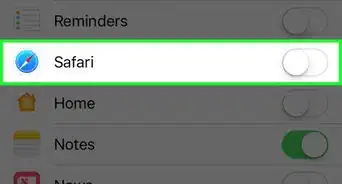
10Scroll until you find the "Safari" option, then swipe it on. If the switch is green, Safari is updating via iCloud.
-
11Exit your Settings app.
-
12Open your "Safari" app and open your bookmarks page. This page is represented by a book-shaped icon in the toolbar at the bottom of your screen.
-
13Confirm that your bookmarks were imported. Your Safari bookmarks should all be listed under the "Favorites" tab.Advertisement


Method 3
Method 3 of 3:Exporting Bookmarks from Other Browsers
Method 3
Google Chrome
-
1Open Google Chrome.
-
2Open the "Customize and control Google Chrome" menu. This menu is indicated by three horizontal lines in the upper right-hand corner of your browser's window.[1]
-
3Select the "Bookmarks" option. This will prompt a drop-down menu.
-
4Click on "Bookmark manager" in the drop-down menu.
-
5Click on "Organize". "Organize" is located directly over your list of bookmarks.
-
6In the drop-down menu, click "Export bookmarks to HTML file".
- To export this file to mobile, you'll still need to import it to a Safari desktop first.
-
7Choose your file's save location in the left panel of the "Save As" window. Save your file somewhere easily accessible, like your desktop.
- You can also change the bookmarks file's name in the "Save As" window.
-
8Click "OK" to download your file.
-
9Confirm the file's location. Your file is now ready to be imported into Safari!
- If you're transferring bookmarks from one computer to another, move your bookmarks file to a flash drive or upload it to the cloud (e.g., iCloud or Google Drive) before moving to your other computer.
Advertisement


Firefox
-
1Open Firefox.
-
2Click the "Bookmarks" button in the bookmarks toolbar. This will take you to the Bookmarks menu.
-
3Click "Show All Bookmarks" to open the "Library" window. The Library window displays all of your bookmarks, as well as import and export options.[2]
-
4Click the "Import and Backup" button in the Library toolbar.
-
5Click "Export Bookmarks to HTML". Firefox will prompt you to choose a save location.
- To export this file to mobile, you'll still need to import it to a Safari desktop first.
-
6Choose your file's save location in the left panel of the "Save As" window. Save your file somewhere easily accessible, like your desktop.
- You can also change the bookmarks file's name in the "Save As" window.
-
7Click "Save" to download your file.
-
8Confirm the file's location. Your file is now ready to be imported into Safari!
- If you're transferring bookmarks from one computer to another, move your bookmarks file to a flash drive or upload it to the cloud (e.g., iCloud or Google Drive) before moving to your other computer.
Advertisement


Internet Explorer
-
1Open Internet Explorer.
-
2Click the star icon in the upper right-hand corner of your window. This will open the "Favorites, feeds, and history" menu.[3]
-
3Click the "down" arrow next to the "Add to favorites" text. This will open a drop-down menu.
-
4In the drop-down menu, click "Import and Export". This opens the "Import/Export Settings" window.
-
5Select "Export a file", then click "Next".
- To export this file to mobile, you'll still need to import it to a Safari desktop first.
-
6Click the "Favorites" option to check it, then click "Next".
-
7Select the files you would like to export, then click "Next".
- If you want to export your entire Favorites folder, subfolders included, click "Favorites" at the top of the list.
-
8Click "Browse" to select a save location. Save your file somewhere easily accessible, like your desktop.
-
9Click "OK" to confirm your save location.
-
10Click "Export". Your file will download to your selected save location.
-
11Confirm the file's location. Your file is now ready to be imported into Safari!
- If you're transferring bookmarks from one computer to another, move your bookmarks file to a flash drive or upload it to the cloud (e.g., iCloud or Google Drive) before moving to your other computer.
Advertisement


Community Q&A
-
QuestionWhat about Chromebooks?
 Community AnswerSafari is only supported on Apple computers and cannot be used on Chromebooks, which use a different OS.
Warnings
- Apple no longer supports Safari on Windows machines.Thanks!
Advertisement




References
About This Article
Advertisement