This article was written by Jack Lloyd and by wikiHow staff writer, Hannah Madden. Jack Lloyd is a Technology Writer and Editor for wikiHow. He has over two years of experience writing and editing technology-related articles. He is technology enthusiast and an English teacher.
There are 7 references cited in this article, which can be found at the bottom of the page.
The wikiHow Tech Team also followed the article's instructions and verified that they work.
This article has been viewed 485,266 times.
When you visit a website, there’s a good chance that it’s saving your browsing patterns on your device. This information, known most commonly as “cookies,” allows websites to personalize their data to fit your specific needs. While cookies have gotten a bad rap in the media, they can actually help you find exactly what you’re looking for when you have them enabled. If you use a Mac computer or an iOS mobile device, here’s how you can enable cookies.
Steps
Method 1
Method 1 of 4:Understanding Cookies
-
1What are cookies? The first time you visit a website, a “cookie” is downloaded onto your computer. When you visit that site again, your computer will automatically check to see if it has any relevant information about the site stored for you. From there, it can help tailor the content to fit your needs.[1]
- For example, a website might save your searches so it can show you what you’re looking for.
-
2What are first-party cookies? First-party cookies are cookies that are downloaded straight from the website you’re visiting. They’re the ones that will help tailor the content to your specific needs.[2]
- Sometimes, a website won’t work if you’ve disabled first-party cookies since it needs to know who you are and what you’re searching for.
- If you can specify that you’re only allowing cookies from websites that you visit, you can just enable first-party cookies.
Advertisement -
3What are third-party cookies? Third-party cookies are cookies downloaded from other websites—websites that you aren’t visiting right now. Usually, these cookies collect data about you and give it to advertisers so they can sell you a product.[3]
- These are the cookies that you’re going to want to watch out for, since they can give your information to people trying to sell you things.
- Unless your device can specify which cookies you’re allowing, if you enable all cookies, you’re allowing both first and third-party cookies.
-
4How can I tell if my cookies are already enabled? Unless you’ve messed with the settings on your device already, there’s a good chance that your cookies are already enabled for Safari. If you’re not sure, you can visit a website to automatically check your status for you.[4]
- To see if your cookies are enabled already, visit https://www.whatismybrowser.com/detect/are-cookies-enabled.
Advertisement


Method 2
Method 2 of 4:On Mac Desktop
-
1Click the Safari app icon. The Safari app icon resembles a blue compass, in your Mac's Dock.
-
2Open and click Safari. Safari is a menu item in the top-left corner of the screen. A drop-down menu will appear.[5]
-
3Click Preferences…. This option is near the top of the drop-down menu. Doing so opens the Safari Preferences window.[6]
-
4Click the Privacy tab. It's at the top of the Preferences window.[7]
-
5Deselect the “Block All Cookies” option. This option is below the "Cookies and website data" heading. Doing so will enable cookies in your Safari browser.[8]
- You can also check a less liberal option, such as "Allow from websites I visit", to cut down on the number of third-party cookies on your computer.
Advertisement


Method 3
Method 3 of 4:On iOS (iPhone, iPad, iPod Touch)
-
1Open your device’s Settings. Tap the Settings app icon, which resembles a set of gears on a grey background.[9]
- The process for enabling cookies is the same on all iOS devices, but the screenshots may look slightly different depending on what you’re using.
-
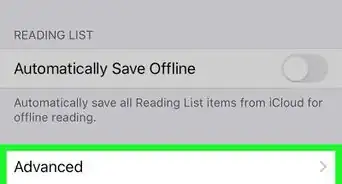
2Scroll down and tap Safari. This option is around a third of the way down the Settings page.[10]
- If you can’t find it, type “Safari” into the search box at the top of the page.
-
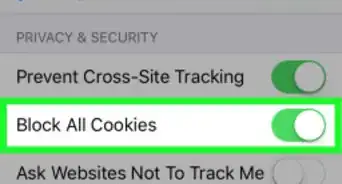
3Tap the green "Block All Cookies" switch . It’s underneath the “Privacy and Security” heading. The switch will turn white , signifying that your iPhone's Safari browser will now allow cookies.[11]
- If the "Block All Cookies" switch is white, your iPhone's Safari browser is already enabling cookies.
Advertisement


Method 4
Method 4 of 4:Troubleshooting Cookie Problems
-
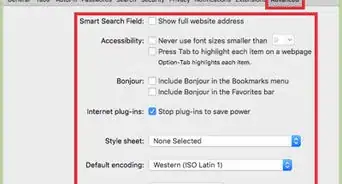
1Switch out of a private window if your cookies aren’t working. If you’ve enabled your cookies on your Mac and it doesn’t seem like they’re working, you might be in a private window (meaning websites can’t access your data). To switch out of a private window, go to Safari > General, then click “A New Window.” This should hopefully allow your cookies to enable.[12]
- If you’ve set your Safari to automatically open to a private window, you might not even realize you’re in one.
-
2Use another browser if you’re having repeated issues. If you’ve tried enabling cookies before and it just isn’t working, switch to a different web browser. Google Chrome, Firefox, Microsoft Edge, and Internet Explorer are all options.[13]
- You can try a few different web browsers until one works for you.
-
3Disable cookies if you need to. If you’re no longer comfortable with having your cookies enabled, you can follow the same steps on your computer or mobile device to turn them off. Either select “Block all cookies” to block all of them, or allow first-party cookies only by choosing “Allow from websites I visit.”[14]
- You might choose to disable your cookies if you think your personal information is being used by advertisers or social media platforms.
Advertisement


Community Q&A
-
QuestionHow do I enable cookies in Safari?
 Community AnswerYou can go to Safari, and click on preferences. Then, you click on "privacy," where you can select a “cookies and website data” option. You need to choose the "always allow" option.
 -
QuestionWhat do I do if I don't have the "Always allow" button, only the "Block all cookies" or "Manage data"?Community AnswerI found that I had to uncheck "Website tracking" - then everything worked fine.
-
QuestionWhat do I do if I have allow cookies selected and I still get messages that I must enable cookies?
 Community AnswerYou have to uncheck “Prevent cross-site tracking” as well as unchecking “Block all cookies”. Then it will work. This is the same on your phone too.
Warnings
- Cookies are often responsible for websites remembering your login information. While this is helpful on your own computer or iPhone, you should refrain from using cookies on public or shared computers or smartphones.Thanks!









References
- ↑ http://www.bbc.co.uk/webwise/guides/about-cookies
- ↑ https://www.whatismybrowser.com/guides/how-to-enable-cookies/safari-iphone
- ↑ https://www.whatismybrowser.com/guides/how-to-enable-cookies/safari-iphone
- ↑ https://www.whatismybrowser.com/detect/are-cookies-enabled
- ↑ https://support.apple.com/guide/safari/manage-cookies-and-website-data-sfri11471/mac
- ↑ https://support.apple.com/guide/safari/manage-cookies-and-website-data-sfri11471/mac
- ↑ https://support.apple.com/guide/safari/manage-cookies-and-website-data-sfri11471/mac
- ↑ https://support.apple.com/guide/safari/manage-cookies-and-website-data-sfri11471/mac
- ↑ https://support.apple.com/en-us/HT201265
- ↑ https://support.apple.com/en-us/HT201265
- ↑ https://support.apple.com/en-us/HT201265
- ↑ https://support.apple.com/guide/safari/use-private-browsing-ibrw1069/mac
- ↑ https://support.google.com/accounts/answer/61416?co=GENIE.Platform%3DiOS&hl=en
- ↑ https://support.apple.com/guide/safari/manage-cookies-and-website-data-sfri11471/mac
About This Article
1. Open Safari.
2. Click Safari.
3. Click Preferences....
4. Click the Privacy tab.
5. Check the "Always allow" box.