This article was written by Jack Lloyd. Jack Lloyd is a Technology Writer and Editor for wikiHow. He has over two years of experience writing and editing technology-related articles. He is technology enthusiast and an English teacher.
The wikiHow Tech Team also followed the article's instructions and verified that they work.
This article has been viewed 292,562 times.
Getting too many annoying alerts? This wikiHow article teaches you how to prevent Twitter from sending you notifications of any kind. You can disable desktop and email locations from the Twitter website on a computer; you can also disable mobile notifications on your smartphone or tablet if you have the Twitter app installed.
Steps
Method 1
Method 1 of 3:On Desktop
-
1Open Twitter. Go to https://twitter.com/ in your computer's web browser. If you're logged into Twitter, this will open your Twitter feed.
- If you aren't logged into Twitter, you'll need to enter your email address (or Twitter name, or phone number) and password in the upper-right side of the page and then click Log in.
-
2Click the Notifications tab. It's on the left side of the page next to a bell icon. Doing so opens a list of your recent Twitter notifications.Advertisement
-
3Click the Settings icon. It looks like a gear in the upper right corner of the "Notifications" panel. Clicking this icon will take you to the Notifications section of the Settings menu.
-
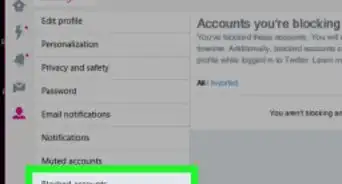
4Mute notifications from people you don't follow. Click Filters, then Muted Notifications. Finally, check every box on this page to mute everything. This won't affect people who you follow, but it will prevent you from receiving annoying notifications from or about other people.
-
5Return to the Notification Settings panel and click Preferences. To do this, click the back navigation arrow that's next to "Muted notifications" twice. You'll then be able to select Preferences.
-
6Click Email notifications. You'll find this on the right side of the page.
-
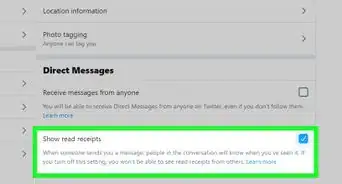
7
-
8Click the back arrow and select Push notifications. The arrow is at the top of the page next to "Email notifications," and clicking it once will bring you back to the notification types.
- The push notifications act as alerts on your computer, so turning this off will disable those alerts.
-
9Click the switch next to "Push notifications" to toggle it off . Doing so prevents Twitter from sending you notifications when you're using a browser.
- All the notifications you get from Twitter will be muted or turned off after you've done this.
Advertisement


Method 2
Method 2 of 3:On iPhone
-
1
-
2Tap Notifications. This option is toward the top of the Settings page.
-
3Scroll down and tap Twitter. Since apps here are listed in alphabetical order, it'll be in the "T" section of apps on this menu.
-
4Tap the green "Allow Notifications" switch. It's at the top of the page. The switch will turn white , signifying that you will no longer receive any notifications from Twitter.
- You also won't see a red icon with a number next to it on the Twitter app icon when you have unopened Twitter notifications.
Advertisement


Method 3
Method 3 of 3:On Android
-
1Open your Android's Settings. Tap the Settings app icon, which resembles a gear, in the App Drawer.
- You can also open Settings by swiping down from the top of the screen and tapping the gear icon near the top of the resulting drop-down menu.
-
2Scroll down and tap Apps. It's near the middle of the page.
-
3Scroll down and tap Twitter. You'll find this in the "T" section of the list of installed apps.
-
4Tap Notifications. It's toward the bottom of the screen.
-
5Tap the white "Block all" switch. It will turn teal , signifying that you will no longer receive notifications or prompts from Twitter.Advertisement


Community Q&A
-
QuestionHow do I clear my Twitter page?
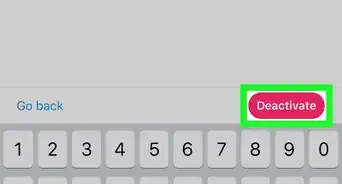
 Community AnswerGo to your account settings and click on deactivate my account at the bottom of the page. Read the account deactivation information. Click okay, and deactivate the account. Enter your password when prompted and verify that you want to deactivate your account.
 -
QuestionWhy do I get an email on my PC every time I log into Twitter on my phone?
 Adam Michael SobersCommunity AnswerIt might be because Twitter doesn't recognize your phone and emails you to make sure that it's not a hacker. Don't fret though, usually in the email it gives instructions on how to make it a valid system of yours.
 -
QuestionWhat should I do if I don't know which of my three old Twitter accounts the notification is sending to?Community AnswerAccess all of those accounts. If you forgot your password, get a new one. Check all your emails, and you'll find a way to access your account.
-
QuestionHow can I limit the number of Tweet notifications I get from someone in a day?Community AnswerYou can't You can only completely block the person or just turn off the notifications completely.
-
QuestionHow do I block or unfollow a Twitter account and prevent it from being directed to my Messages?Community AnswerJust search for the account and "unfollow": when you do, the option of blocking should pop up. Press that, and forget about that account.
-
QuestionHow do I stop Twitter emails going to my Gmail account?
 WFTop AnswererGo to your Gmail's inbox and open an email from Twitter. Scroll down to the bottom and click on "Unsubscribe." Confirm your settings.
 -
QuestionA follower of mine on Twitter is getting notifications every time I have a new follower. How do I stop this from occurring?WFTop AnswererYou can manage your email and other notifications from Twitter settings.
-
QuestionHow can I stop Twitter from sending me log-in notifications?
 Community AnswerGo to your Settings. Go to the Mobile tab. If your mobile device is connected to your Twitter account, you'll see options to change your Mobile notifications preferences. Click on the box next to the mobile notifications you want to receive and/or turn off
Warnings
- Disabling notifications may cause you to miss direct messages or the like.Thanks!


About This Article
1. Open Twitter.
2. Click the Notifications tab.
3. Click the Settings icon.
4. Mute notifications from people you don't follow.
5. Return to the Notification Settings panel and click Preferences.
6. Click Email notifications.
7. Click the switch next to "Email notifications" to toggle it off.
8. Click the back arrow and select Push notifications.
9. Click the switch next to "Push notifications" to toggle it off.