X
wikiHow is a “wiki,” similar to Wikipedia, which means that many of our articles are co-written by multiple authors. To create this article, volunteer authors worked to edit and improve it over time.
This article has been viewed 26,583 times.
Learn more...
If your YouTube video is inappropriate for the younger audience, you can set age restriction. Age-restricted videos are not visible to users who are under 18 years of age. Also, these videos are restricted from users who are logged out or have Restricted Mode enabled on their account.
Steps
-
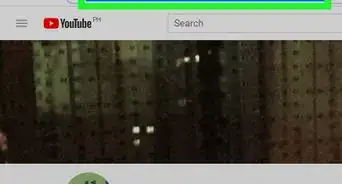
1Go to YouTube. Open www.youtube.com in your browser and sign in with your account, If you’re not already signed in.
-
2Open the Creator Studio. Click on your profile picture at the top bar and click on the Creator Studio.Advertisement
-
3Navigate Video Manager. Click on the VIDEO MANAGER from the left panel.
-
4Choose your video to edit. Click on the Edit button near your video.
-
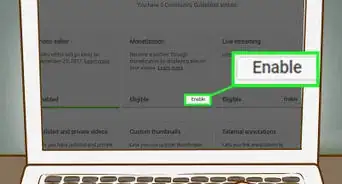
5Navigate to Advanced settings. Click on the Advanced settings near the Monetisation option.
-
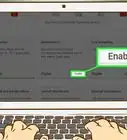
6Scroll down to "Age restrictions". Check the Enable age restriction box.
-
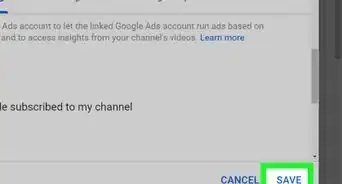
7Save your changes. Hit the Save changes button to finish.
-
8Done. Now your video is restricted to under-aged users!Advertisement


Warnings
- Age-restricted videos are not eligible for monetization on YouTube.Thanks!
Advertisement


About This Article
Advertisement