X
This article was written by Jack Lloyd. Jack Lloyd is a Technology Writer and Editor for wikiHow. He has over two years of experience writing and editing technology-related articles. He is technology enthusiast and an English teacher.
This article has been viewed 21,720 times.
This wikiHow teaches you how to view the first tweet that you posted on your Twitter account. You can do this by downloading your Twitter archive and browsing the earliest year in which you posted on Twitter. Keep in mind that you cannot view deleted tweets. Additionally, you will need access to both your Twitter account and the email account that you use to log into Twitter to download your archive.
Steps
Part 1
Part 1 of 2:Downloading Your Twitter Archive
Part 1
-
1Open Twitter. Go to https://twitter.com/ in your computer's web browser. This will open your Twitter home page if you're logged in.
- If you aren't logged in, first click Log In and enter your email address and password to log into your Twitter account.
-
2Click your profile icon. It's the circular profile picture in the top-right corner of the page. Clicking it prompts a drop-down menu.
-
3Click Settings and privacy. You'll find this option near the bottom of the drop-down menu. Doing so opens the Settings page.
-
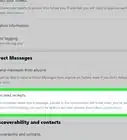
4Scroll down and click Request your archive. It's near the bottom of the page, just right of the "Your Twitter archive" heading.
-
5Click Close when prompted. This confirms that your Twitter archive link has been sent to the email address that you use to log into Twitter.
-
6Open your Twitter email inbox. Go to the email service that you use to log into Twitter and sign into your account if necessary.
-
7Open the "It's Tweet archive time" email. Click this email to do so.
- If you use Gmail, you'll find this email in the Social tab.
-
8Click Download now. It's a blue button in the body of the email. Doing so will take you back to Twitter.
-
9Click Download. This button is near the top of the page. Your Twitter archive will immediately begin downloading onto your computer.


Part 2
Part 2 of 2:Viewing Your First Tweet
Part 2
-
1Open the Twitter archive ZIP folder. Double-click the ZIP folder once it finishes downloading onto your computer to do so.
- On a Windows computer, you'll have to extract the ZIP folder before proceeding.
-
2Double-click the "index" file. It's in the middle of the folder. This will prompt the file to open in your computer's default HTML viewer, which is usually a web browser.
- If prompted, select a program (e.g., your web browser) with which to open the index file.
-
3Select the month of your first tweet. On the right side of the web page, find the heading for the first year in which you tweeted (e.g., "2014"), then click the left-most box below that heading. The box must have a blue bar in it.
-
4Scroll down to the bottom of the page. Your tweets are ordered chronologically from the bottom of the page to the top of the page, meaning that your oldest tweet is at the bottom of the page.
-
5Review your first tweet. The bottom tweet on this page is the first tweet that you ever posted. You can
-
6Click View on Twitter. It's below the tweet's text. This will open the tweet on your Twitter account, allowing you to retweet, respond to, or delete it.
- If you posted a picture or a video with the tweet, the View on Twitter link will be between the tweet's text and the photo/video thumbnail.


Warnings
- You cannot download your Twitter archive on a mobile platform (e.g., iPhone or Android).Thanks!