X
This article was written by Nicole Levine, MFA. Nicole Levine is a Technology Writer and Editor for wikiHow. She has more than 20 years of experience creating technical documentation and leading support teams at major web hosting and software companies. Nicole also holds an MFA in Creative Writing from Portland State University and teaches composition, fiction-writing, and zine-making at various institutions.
This article has been viewed 2,835 times.
This wikiHow teaches you how to view older tweets from a specific time frame when using Twitter on a computer.
Steps
-
1Go to https://www.twitter.com in a web browser. You can access Twitter from any mainstream browser, such as Safari or Chrome. If you’re not already signed in to your account, click Log in to do so now.
-
2Click the search bar. It’s at the top-right corner of the page.Advertisement
-
3Enter the username and timeframe. Use the following format: from:username since:yyyy-mm-dd until:yyyy-mm-dd.
- Replace “username” with the username of the person whose tweets you want to see.
- To search your own tweets, type your own username.
-
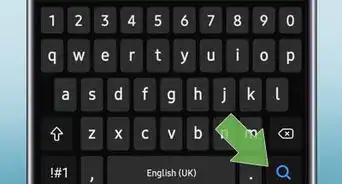
4Click the magnifying glass. It’s to the right of the search bar. Twitter will return a list of tweets from the time period you’ve searched.Advertisement








About This Article

Nicole Levine, MFA
Tech Specialist
This article was written by Nicole Levine, MFA. Nicole Levine is a Technology Writer and Editor for wikiHow. She has more than 20 years of experience creating technical documentation and leading support teams at major web hosting and software companies. Nicole also holds an MFA in Creative Writing from Portland State University and teaches composition, fiction-writing, and zine-making at various institutions. This article has been viewed 2,835 times.
How helpful is this?
Co-authors: 4
Updated: May 15, 2018
Views: 2,835
Categories: Twitter
Article SummaryX
1. Sign in to Twitter.
2. Click the search bar.
3. Enter the search format username since:yyyy-mm-dd until:yyyy-mm-dd
4. Click the magnifying glass.
Did this summary help you?
Advertisement