X
This article was co-authored by wikiHow Staff. Our trained team of editors and researchers validate articles for accuracy and comprehensiveness. wikiHow's Content Management Team carefully monitors the work from our editorial staff to ensure that each article is backed by trusted research and meets our high quality standards.
The wikiHow Tech Team also followed the article's instructions and verified that they work.
This article has been viewed 29,384 times.
Learn more...
This wikiHow teaches you how to take a full or partial screenshot on a laptop running Google's Chrome operating system.[1]
Steps
Part 1
Part 1 of 3:Taking a Full Screenshot
Part 1
-
1Go to the screen of which you want a screenshot. When using Chromebook, you can take a screenshot of anything that appears on the Chromebook's screen, like a webpage, document, or movie frame.
-
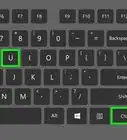
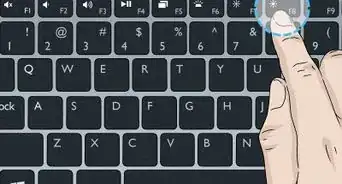
2Press Ctrl and the Screen Switcher key. Doing so captures an image of everything on your Chromebook's screen.
- The Screen Switcher key is the one with a rectangle and two vertical lines to its right.
- If your keyboard doesn't have a Screen Switcher key, use F5 instead.
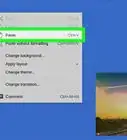
- Click on Copy to clipboard if you'd like to paste the screenshot into a document.


Part 2
Part 2 of 3:Taking a Partial Screenshot
Part 2
-
1Go to the screen of which you want a screenshot. You can take a screenshot of anything that appears on the Chromebook's screen, like a webpage, document, or movie frame.
-
2Press Ctrl + ⇧ Shift and then press the Screen Switcher key. Doing so launches a framing tool on your screen.
- The Screen Switcher key is the one with a rectangle and two vertical lines to its right.
- If your keyboard doesn't have a Screen Switcher key, use F5 instead.
-
3Click on and hold the tool. While doing so, drag it to frame the part of the screen that you'd like to capture.
- When you release the mouse or trackpad, your screenshot will be saved.
- Click on Copy to clipboard if you'd like to paste the screenshot into a document.


Part 3
Part 3 of 3:Accessing Your Chromebook Screenshots
Part 3
-
1Hold down ⇧ Shift + Alt and then press the M key. Doing so opens the "Downloads" folder where all screenshots are automatically stored.
-
2Double-click on a screenshot. This opens the screenshot so you can view it.
- Screenshots are .png files labeled with the word "Screenshot," along with the date and time they were captured.


Community Q&A
-
QuestionWhat if there is no F5 key on my Chromebook?
 Zhongli, Archon of Liyue (Aasim)Community AnswerPress the screen switcher key. Alternatively, press power + volume down on a tablet.
About This Article

wikiHow Staff
wikiHow Staff Writer
This article was co-authored by wikiHow Staff. Our trained team of editors and researchers validate articles for accuracy and comprehensiveness. wikiHow's Content Management Team carefully monitors the work from our editorial staff to ensure that each article is backed by trusted research and meets our high quality standards. This article has been viewed 29,384 times.
How helpful is this?
Co-authors: 13
Updated: September 25, 2021
Views: 29,384
Categories: Chromebook