This article was written by Nicole Levine, MFA. Nicole Levine is a Technology Writer and Editor for wikiHow. She has more than 20 years of experience creating technical documentation and leading support teams at major web hosting and software companies. Nicole also holds an MFA in Creative Writing from Portland State University and teaches composition, fiction-writing, and zine-making at various institutions.
The wikiHow Tech Team also followed the article's instructions and verified that they work.
This article has been viewed 11,322 times.
This wikiHow teaches you how to scan a document directly to the Dropbox folder on your Mac or PC. Make sure your scanner is properly connected to your computer before you begin.
Steps
Method 1
Method 1 of 2:Windows
-
1Open the Dropbox app on your Windows PC. Double-click the Dropbox icon (a white open-box icon near the clock in the taskbar) to open the app. If you don't have the app, here’s how to get it:
- Go to https://www.dropbox.com/install in a web browser.
- Click Download Dropbox.
- If prompted to choose a download location, select your Downloads folder.
- Double-click the installer you downloaded.
- Follow the on-screen instructions to install the app.
- Log in to Dropbox.
-
2Press ⊞ Win+S.Advertisement
-
3Type scan into the search bar. It's usually at the bottom-left corner of the screen.
-
4Click Windows Fax and Scan. It should be near the top of the search results.
-
5Click Show more. It’s the blue text link.
-
6Click Save file to. A list of folders will appear.
-
7Select the Dropbox folder. If you have created a sub-folder in the Dropbox folder for scanned files, select that folder instead.
-
8Place your document on the scanner.
-
9Click Scan. It’s at the bottom of the window. The document will now scan to the Dropbox folder.Advertisement


Method 2
Method 2 of 2:macOS
-
1Open Dropbox on your Mac. It’s the open-box icon typically near the top-right corner of the screen. If you don’t have the app, here’s how to get it:[1]
- Go to https://www.dropbox.com/install in a web browser.
- Click Download Dropbox.
- If prompted to choose a download location, select Downloads.
- Double-click the installer you downloaded.
- Follow the on-screen instructions to install the app.
- Log in to Dropbox.
-
2Open Image Capture. It’s an app in the Applications folder.[2]
-
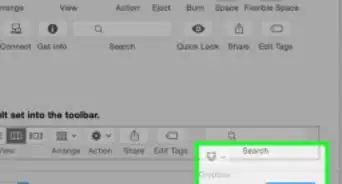
3Select the Dropbox folder. If you are not prompted to select a folder in the “Scan to” pop-up, select the Dropbox folder from the first drop-down menu (which defaults to Pictures).
-
4Place your document on the scanner.
-
5Click Scan. It’s at the bottom-right corner of the app. The document will now scan to the Dropbox folder.Advertisement



References
About This Article