wikiHow is a “wiki,” similar to Wikipedia, which means that many of our articles are co-written by multiple authors. To create this article, volunteer authors worked to edit and improve it over time.
This article has been viewed 162,327 times.
Learn more...
Dropbox is an online file storage service that allows users to upload, share, and access files and folders via mobile and desktop applications as well as a browser-based interface. The service offers free and paid services consisting of varying data and sharing restrictions and provides software applications for Windows, Mac OS X, Linux, Android, Windows Phone 7, BlackBerry, iPhone, and iPad. This article will walk you through the process of unlinking a computer from a Dropbox account.
Steps
Method 1
Method 1 of 3:Dropbox website
-
1Go to the Dropbox login page and log in using the email and password associated with your Dropbox account.
-
2Click “Account” from the upper right corner of the page.
-
3Click the “My Computers” tab.
-
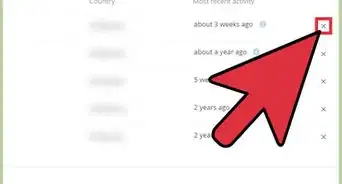
4Click “Unlink” next to the computer you want to unlink from your Dropbox account.
-
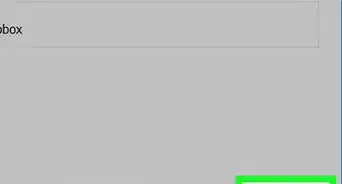
5Click the “Unlink computer” button to confirm the action when prompted.


Method 2
Method 2 of 3:Windows
-
1Right-click the Dropbox icon located in the system tray and select “Preferences…” from the context menu. (bottom right corner by default). Note: You may have to click the small arrow in the system tray to reveal all its icons first.
-
2Click the “Unlink this computer…” button located in the “General” tab.
-
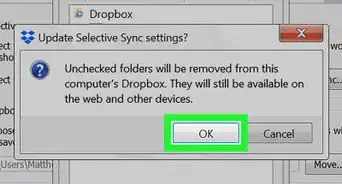
3Click “OK” when prompted to confirm the action.


Method 3
Method 3 of 3:Mac


Warnings
- Folders within your Public folder cannot be shared.Thanks!