X
wikiHow is a “wiki,” similar to Wikipedia, which means that many of our articles are co-written by multiple authors. To create this article, volunteer authors worked to edit and improve it over time.
This article has been viewed 101,634 times.
Learn more...
All your messages on Facebook are always accessible, from your most recent ones to those from several years back. You just have to log into your Facebook account or to Facebook Messenger to read through them. There’s no direct way to save these messages to an external or offline file from Facebook. If you need a certain conversation extracted and saved to a file, there are some workarounds that you may want to consider.
Steps
Method 1
Method 1 of 2:Saving a Soft Copy of the Messages
Method 1
-
1Go to Facebook. Open a new browser tab or window, and visit the Facebook website from any web browser.
-
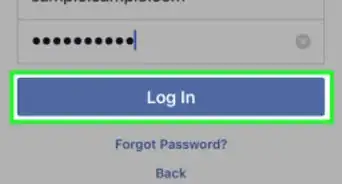
2Log in. Use your Facebook account and password to log in. The login fields are found on the upper right corner of the page. Click the “Log in” button to proceed.
-
3Go to Messages view. Right-click on the dialogue icon on the header menu bar, and open the link in a new tab or window. You will be brought to the Messages view page.
-
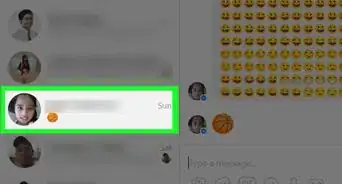
4View your conversations list. The left panel contains your list of conversations. The messages here are sorted with the most recent conversations at the top. Each conversation is identified by the person or group you were in a conversation with. The last message date is also indicated beside each message.
- Use the scroll bar on the left panel to scroll through your list of conversations. You can go back to years of conversations here. Everything is stored. When you reach the bottom of the current batch, the next batch of older messages will be loaded automatically, until you reach the very end or the very first conversation you’ve had on Facebook.
-
5Select a conversation. When you find the conversation you want to extract, click on it from the left panel. The whole conversation thread will open on the right panel. You can see and read everything you talked about, from the very first time you started that particular thread with the same person or the same group.
-
6Highlight the messages to be copied. You may not need to copy everything from the beginning. You may just need a certain portion of it. Highlight the messages you want and copy them to your clipboard (CTRL+C for PC, CMD+C for Mac).
-
7Paste messages. Open any text editor, such as MS Word or Notepad. Paste (CTRL+V for PC, CMD+V for Mac) the contents of your clipboard. Note that some formatting and photos may be lost in the transfer.
-
8Save the file. Once you’ve copied and pasted everything you need, save the file. You now can print or store the messages as needed.


Method 2
Method 2 of 2:Saving a Hard Copy of the Messages
Method 2
-
1Visit Facebook. Open any web browser on your computer and visit the Facebook website.
-
2Log in. Use your Facebook account and password to log in. The login fields are found on the upper right corner of the page. Click the “Log in” button to proceed.
-
3Go to Messages view. Right-click on the dialogue icon on the header menu bar, and open the link in a new tab or window. You will be brought to the Messages view page.
-
4View your conversations list. The left panel contains your list of conversations. The messages here are sorted with the most recent conversations at the top. Each conversation is identified by the person or group you were in a conversation with. The last message date is also indicated beside each message.
- Use the scroll bar on the left panel to scroll through your list of conversations. You can go back to years of conversations here. Everything is stored. When you reach the bottom of the current batch, the next batch of older messages will be loaded automatically, until you reach the very end or the very first conversation you’ve had on Facebook.
-
5Select a conversation. When you find the conversation you want to save, click on it from the left panel. The whole conversation thread will open on the right panel. You can see and read everything you talked about, from the very first time you started that particular thread with the same person or the same group.
-
6View messages to be saved. You might not need to copy all your messages, just a certain portion of it. Scroll up the conversation thread to load the older messages until you find the message you want to save. Make sure the messages you want saved is being shown on your screen.
- If you want the browser to display larger texts of the message, just hold the CTRL key on the keyboard while scrolling up on the mouse wheel.
-
7Print the messages. Use the Print function of your web browser and print the current page being displayed. Print function varies on the browser. For example, the Print function can be accessed from the main menu of Google Chrome and from the Settings menu of Internet Explorer. You can also access it quickly by doing the short keys CTRL+P in Windows. You can print the messages to paper or to an external file, depending on the printers installed on your computer.