This article was written by Nicole Levine, MFA. Nicole Levine is a Technology Writer and Editor for wikiHow. She has more than 20 years of experience creating technical documentation and leading support teams at major web hosting and software companies. Nicole also holds an MFA in Creative Writing from Portland State University and teaches composition, fiction-writing, and zine-making at various institutions.
The wikiHow Tech Team also followed the article's instructions and verified that they work.
This article has been viewed 3,407 times.
This wikiHow teaches you how to delete all of your personal files and settings and reinstall Windows 8. Since this process deletes all of your data, a reset is usually used when you want to sell or give away your PC. If you want to reinstall Windows 8 without losing your files, see How to Restore Windows 8 instead.
Steps
-
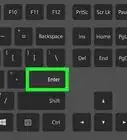
1Press ⊞ Win+C to open the Charms menu.
- If you upgraded this PC from Windows 8 to Windows 8.1, doing a reset will restore the original version of Windows 8.
-
2Click Settings Settings. It's near the bottom of the menu.[1]
-
3Click Change PC Settings. It's at the bottom of the menu.
-
4Click Update and recovery. It's in the left column.
-
5Click Recovery. It's in the left column.
-
6Click Get Started under "Remove everything and reinstall Windows." It's the second "Get Started" button on the right side of the window.
-
7Review the description and click Next. The message explains that if you continue, all of your personal data will be deleted and your PC will return to its original factory settings.
-
8Select a hard drive cleaning option. The option you select depends on what you are going to do with this PC after resetting Windows:
- If you plan to keep this PC, select Just remove my files. This reinstalls the operating system and deletes your files without fully reformatting the hard drive.
- If you're getting rid of this PC, select Fully clean the drive. This option prevents anyone who comes into contact with this hard drive from recovering your personal data.
-
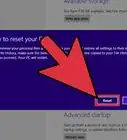
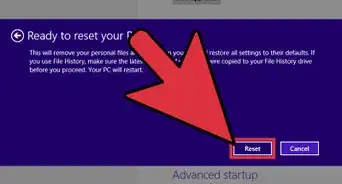
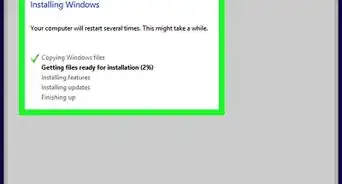
9Click Reset to reset the PC. The PC will shut down and start the reset process. When the process is complete, you'll be prompted to set up and customize Windows.



About This Article

1. Open the Charms menu.
2. Click Settings.
3. Click Change PC Settings.
4. Click Update and recovery.
5. Click Restart under "Remove Everything."
6. Click Next.
7. Follow the on-screen instructions.